<?xml version="1.0" encoding="utf-8"?><feed xmlns="http://www.w3.org/2005/Atom" ><generator uri="https://jekyllrb.com/" version="3.10.0">Jekyll</generator><link href="https://yihengan.com/feed.xml" rel="self" type="application/atom+xml" /><link href="https://yihengan.com/" rel="alternate" type="text/html" /><updated>2026-04-01T05:17:42-07:00</updated><id>https://yihengan.com/feed.xml</id><title type="html">Yiheng An</title><subtitle>PhD Student @ Warrington College of Business, University of Florida</subtitle><author><name>Yiheng An</name><email>yiheng.an.usa@gmail.com</email></author><entry><title type="html">Leveraging Supervised and Unsupervised Machine Learning to Study Shapes</title><link href="https://yihengan.com/posts/2022/11/supervised-unsupervised/" rel="alternate" type="text/html" title="Leveraging Supervised and Unsupervised Machine Learning to Study Shapes" /><published>2023-02-21T00:00:00-07:00</published><updated>2023-02-21T00:00:00-07:00</updated><id>https://yihengan.com/posts/2022/11/supervised-unsupervised</id><content type="html" xml:base="https://yihengan.com/posts/2022/11/supervised-unsupervised/"><![CDATA[<p>As sensor technology improves, data volumes grow. We now live in a sea of data collected by our phones, smartwatches, and home assistants like Alexa. Science is not any different, new sensors are enabling the collection of large datasets that can be mined for new scientific discoveries. In plant science, sensor technology is being applied to study how plants grow under drought conditions. 
<!--more--></p>

<hr />

<blockquote>
  <p><strong><em>NOTE:</em></strong> Access the workshop notebook <a href="https://colab.research.google.com/drive/1UiyhLE-TtURV-jmtpjzEcTrn8jNw-iYV?usp=sharing">here</a>.</p>
</blockquote>

<h1 id="research">Research</h1>

<p>We will be using data collected by the Field Scanalyzer at the University of Arizona Maricopa Agricultural Center. The Field Scanalyzer covers over an hectare of land - capturing data from over 20,000 plants over a growing season. The Field scanalyzer is equipped with stereo RGB and thermal cameras, a PSII chlorophyll fluorescence imager, and a pair of 3D laser scanners (pictured below).</p>

<p align="center"><img src="https://github.com/emmanuelgonz/emmanuelgonz.github.io/raw/master/images/bold_gantry_box.png" /></p>

<p>Collectively, these sensors capture 20 terabytes (TBs) in a three-month period, which makes converting these raw data into information a difficult task. Accomplishing extraction of information requires leveraging machine learning, high performance computers, and distributed computing.</p>

<p align="center"><img height="500" src="https://github.com/emmanuelgonz/emmanuelgonz.github.io/raw/master/images/file_sizes_swg.png" /></p>

<p>These data enable me and other scientists to study how plants respond to drought stress under real-world, field conditions. These data will contribute to efforts aimed at improving the resiliency of plants to drought stress.</p>

<h1 id="data">Data</h1>

<p>Today we will be working with 3D point cloud data collected by the Field Scanalyzer. These data provide fine-scale resolution on plant shapes. We will: (<i>i</i>) extract TDA shape descriptors, (<i>ii</i>) run PCA on these data, and (<i>iii</i>) classify plants into their respective variety name.</p>

<hr />

<h1 id="workshop-materials">Workshop materials</h1>

<ul>
  <li><a href="https://colab.research.google.com/drive/1UiyhLE-TtURV-jmtpjzEcTrn8jNw-iYV?usp=sharing">Google Colab notebook</a></li>
</ul>

<h1 id="acknowledgements">Acknowledgements</h1>
<p>With special thanks to:</p>
<ul>
  <li>Dr. Duke Pauli &amp; lab members</li>
  <li>Dr. Eric Lyons &amp; lab members</li>
</ul>]]></content><author><name>Yiheng An</name><email>yiheng.an.usa@gmail.com</email></author><category term="data" /><category term="analytics" /><category term="terminal" /><category term="bash" /><category term="github" /><category term="git" /><category term="irods" /><category term="pip" /><category term="python" /><category term="hpc" /><category term="high performance computer" /><category term="programming" /><category term="coding" /><category term="cyverse" /><category term="data" /><category term="science" /><category term="computing" /><category term="soft skills" /><category term="linux" /><category term="data visualization" /><category term="interactive visualization" /><category term="phenomics" /><category term="plant science" /><summary type="html"><![CDATA[As sensor technology improves, data volumes grow. We now live in a sea of data collected by our phones, smartwatches, and home assistants like Alexa. Science is not any different, new sensors are enabling the collection of large datasets that can be mined for new scientific discoveries. In plant science, sensor technology is being applied to study how plants grow under drought conditions.]]></summary></entry><entry><title type="html">Using interactive data visualization to make sense of large datasets</title><link href="https://yihengan.com/posts/2022/11/making-sense-of-data/" rel="alternate" type="text/html" title="Using interactive data visualization to make sense of large datasets" /><published>2022-11-16T00:00:00-07:00</published><updated>2022-11-16T00:00:00-07:00</updated><id>https://yihengan.com/posts/2022/11/making-sense-of-data</id><content type="html" xml:base="https://yihengan.com/posts/2022/11/making-sense-of-data/"><![CDATA[<p>As sensor technology improves, data volumes grow. We now live in a sea of data collected by our phones, smartwatches, and home assistants like Alexa. Science is not any different, new sensors are enabling the collection of large datasets that can be mined for new scientific discoveries. In plant science, sensor technology is being applied to study how plants grow under drought conditions. 
<!--more--></p>

<hr />

<blockquote>
  <p><strong><em>NOTE:</em></strong> Access the workshop notebook <a href="https://colab.research.google.com/drive/1qXUkjBhO-1my5SxuUNoYLsgzh5UCzJop?usp=sharing">here</a>.</p>
</blockquote>

<h1 id="phenomics-a-case-study-in-big-data">Phenomics: A case study in big data</h1>

<p>We will be using data collected by the Field Scanalyzer at the University of Arizona Maricopa Agricultural Center. The Field Scanalyzer covers over an hectare of land - capturing data from over 20,000 plants over a growing season. The Field scanalyzer is equipped with stereo RGB and thermal cameras, a PSII chlorophyll fluorescence imager, and a pair of 3D laser scanners (pictured below).</p>

<p align="center"><img src="https://github.com/emmanuelgonz/emmanuelgonz.github.io/raw/master/images/bold_gantry_box.png" /></p>

<p>Collectively, these sensors capture 20 terabytes (TBs) in a three-month period, which makes converting these raw data into information a difficult task. Accomplishing extraction of information requires leveraging machine learning, high performance computers, and distributed computing.</p>

<p align="center"><img height="500" src="https://github.com/emmanuelgonz/emmanuelgonz.github.io/raw/master/images/file_sizes_swg.png" /></p>

<p>These multiple sources of data provide a fine-scale information of plant growth under drought (decreased water) conditions. Today, we will use some of these data to learn interactive visualization using Python!</p>

<p align="center"><img src="https://github.com/emmanuelgonz/emmanuelgonz.github.io/raw/master/images/lettuce_data_examples.png" /></p>

<hr />

<h1 id="workshop-materials">Workshop materials</h1>

<ul>
  <li><a href="https://colab.research.google.com/drive/1qXUkjBhO-1my5SxuUNoYLsgzh5UCzJop?usp=sharing">Google Colab notebook</a></li>
</ul>

<hr />
<h2 id="survey">Survey</h2>

<p>Please provide your feedback to improve future workshops here: <a href="https://bit.ly/2022-ds2f">https://bit.ly/2022-ds2f</a>.</p>

<hr />

<h2 id="additional-materials">Additional materials</h2>

<ul>
  <li>Seminar invitation
    <ul>
      <li><a href="https://cals.arizona.edu/spls/content/spls-tuesday-seminar-transforming-quarter-petabyte-field-phenomics-data-functional-traits">School of Plant Sciences Seminar - Transforming a quarter petabyte of field phenomics data into functional traits and beyond</a>
        <ul>
          <li>Date: Tuesday, 22-Nov</li>
          <li>Time: 4pm</li>
          <li>Zoom link: <a href="https://arizona.zoom.us/j/83941552191">https://arizona.zoom.us/j/83941552191</a></li>
          <li>Password: spls2022</li>
        </ul>
      </li>
    </ul>
  </li>
  <li>Reading
    <ul>
      <li><a href="https://www.amazon.com/Living-Data-Citizens-Better-Information/dp/0374189900">Living in Data: A Citizen’s Guide to a Better Information Future by Jer Thorp</a></li>
      <li><a href="https://arizona-primo.hosted.exlibrisgroup.com/permalink/f/6ljalh/01UA_ALMA51598298120003843">Data Science by John D. Kelleher and Brendan Tierney</a></li>
    </ul>
  </li>
  <li>Software
    <ul>
      <li><a href="https://github.com/phytooracle/automation">PhytoOracle</a>
        <ul>
          <li>Data processing pipelines that convert raw data from the Field Scanalzyer into phenotypic trait information</li>
          <li>To check out our open source code, <a href="https://github.com/phytooracle">click here</a>.</li>
        </ul>
      </li>
    </ul>
  </li>
</ul>

<hr />

<h1 id="acknowledgements">Acknowledgements</h1>

<p>This program is funded by the University of Arizona Libraries: <a href="https://data.library.arizona.edu/ds2f">https://data.library.arizona.edu/ds2f</a>.</p>

<p>With special thanks to:</p>
<ul>
  <li>Jeffrey Oliver</li>
  <li>Megan Senseney</li>
  <li>Jim Martin</li>
  <li>Yvonne Mery</li>
  <li>Leslie Sult</li>
  <li>Cheryl Casey</li>
</ul>]]></content><author><name>Yiheng An</name><email>yiheng.an.usa@gmail.com</email></author><category term="data" /><category term="analytics" /><category term="terminal" /><category term="bash" /><category term="github" /><category term="git" /><category term="irods" /><category term="pip" /><category term="python" /><category term="hpc" /><category term="high performance computer" /><category term="programming" /><category term="coding" /><category term="cyverse" /><category term="data" /><category term="science" /><category term="computing" /><category term="soft skills" /><category term="linux" /><category term="data visualization" /><category term="interactive visualization" /><category term="phenomics" /><category term="plant science" /><summary type="html"><![CDATA[As sensor technology improves, data volumes grow. We now live in a sea of data collected by our phones, smartwatches, and home assistants like Alexa. Science is not any different, new sensors are enabling the collection of large datasets that can be mined for new scientific discoveries. In plant science, sensor technology is being applied to study how plants grow under drought conditions.]]></summary></entry><entry><title type="html">Pip install without sudo on HPC clusters</title><link href="https://yihengan.com/posts/2022/03/pip-install-no-root/" rel="alternate" type="text/html" title="Pip install without sudo on HPC clusters" /><published>2022-03-22T00:00:00-07:00</published><updated>2022-03-22T00:00:00-07:00</updated><id>https://yihengan.com/posts/2022/03/pip-install-no-root</id><content type="html" xml:base="https://yihengan.com/posts/2022/03/pip-install-no-root/"><![CDATA[<p>Learn how to pip install Python packages without root access. 
<!--more--></p>

<hr />

<h1 id="introduction">Introduction</h1>

<p>High performance computer (HPC) clusters are shared resources. As such, sudo/root access is denied to prevent one user from potentially harming the system or deleting data. This does make installing Linux dependencies and/or Python libraries. So how do we get around this?</p>

<h1 id="finding-the-default-python">Finding the default Python</h1>

<p>When installing Python packages, it is important to know the default Python version. To find your default version, run the following command:</p>

<div class="language-bash highlighter-rouge"><div class="highlight"><pre class="highlight"><code>which python3
</code></pre></div></div>

<p>Which should produce an output like this:</p>

<p align="center"><img src="https://github.com/emmanuelgonz/emmanuelgonz.github.io/raw/master/images/which_python3.png" /></p>

<p>You can check for other Python version by running:</p>

<div class="language-bash highlighter-rouge"><div class="highlight"><pre class="highlight"><code><span class="nb">ls</span> <span class="nt">-ls</span> /usr/bin/python<span class="k">*</span>
</code></pre></div></div>

<h1 id="installing-python-libraries">Installing Python libraries</h1>

<p>To install packages without sudo/root access, run the following command, making sure to insert your package name:</p>

<div class="language-bash highlighter-rouge"><div class="highlight"><pre class="highlight"><code>/usr/bin/python3 <span class="nt">-m</span> pip <span class="nb">install</span> &lt;insert package name here&gt; <span class="nt">--user</span>
</code></pre></div></div>

<p>For example, if we wanted to install the awesome <a href="https://giotto-ai.github.io/gtda-docs/latest/library.html">giotto-tda package</a>, we would run:</p>

<div class="language-bash highlighter-rouge"><div class="highlight"><pre class="highlight"><code>/usr/bin/python3 <span class="nt">-m</span> pip <span class="nb">install </span>giotto-tda <span class="nt">--user</span>
</code></pre></div></div>

<p>So why does this work? Well notice the <code class="language-plaintext highlighter-rouge">--user</code> flag, this ensures that the package is only installed within your own user environment. This allows you to download packages without sudo/root access on HPC systems and servers. Give it a try!</p>]]></content><author><name>Yiheng An</name><email>yiheng.an.usa@gmail.com</email></author><category term="data" /><category term="analytics" /><category term="terminal" /><category term="bash" /><category term="github" /><category term="git" /><category term="irods" /><category term="pip" /><category term="python" /><category term="hpc" /><category term="high performance computer" /><category term="programming" /><category term="coding" /><category term="cyverse" /><category term="data" /><category term="science" /><category term="computing" /><category term="soft skills" /><category term="linux" /><summary type="html"><![CDATA[Learn how to pip install Python packages without root access.]]></summary></entry><entry><title type="html">Phenomic Data Exploration</title><link href="https://yihengan.com/posts/2022/03/phytooracle-data-exploration/" rel="alternate" type="text/html" title="Phenomic Data Exploration" /><published>2022-03-21T00:00:00-07:00</published><updated>2022-03-21T00:00:00-07:00</updated><id>https://yihengan.com/posts/2022/03/phytooracle-data-exploration</id><content type="html" xml:base="https://yihengan.com/posts/2022/03/phytooracle-data-exploration/"><![CDATA[<p>Explore field scanalyzer multimodal phenomic data!
<!--more--></p>

<hr />

<h1 id="introduction">Introduction</h1>

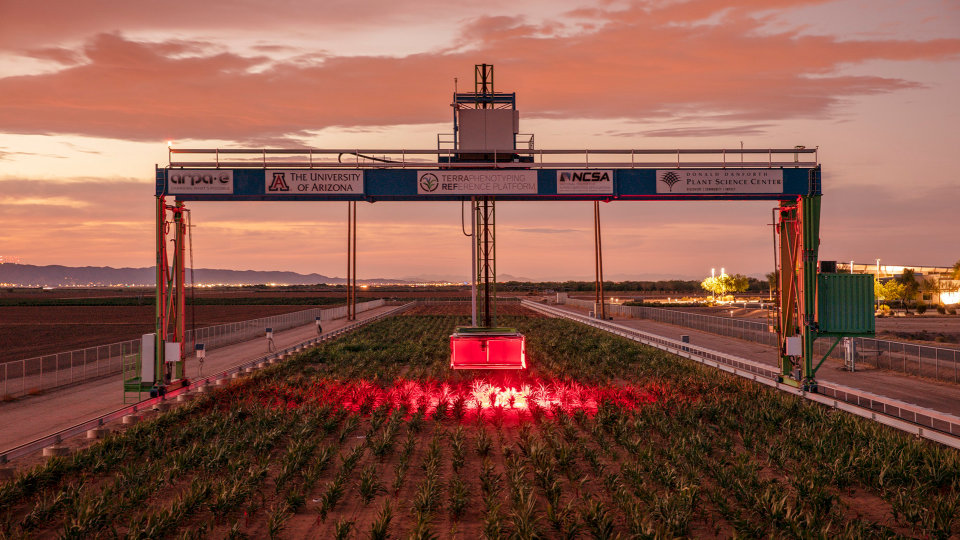
<p>The field scanalyzer at the University of Arizona Maricopa Agricultural Center is a multimodal phenotyping platform that travels along rails and captures images and point clouds of thousands of plants. These data are processed using <a href="https://github.com/phytooracle/automation">PhytoOracle</a> distributed processing pipelines. Given the size of raw data, all field scanalyzer data types are processed on the <a href="https://public.confluence.arizona.edu/display/UAHPC">University of Arizona high performance computer cluster</a>.</p>

<figure>
<p align="center"><img src="https://github.com/emmanuelgonz/emmanuelgonz.github.io/raw/master/images/gantry_wsj.jpg" /></p>
<figcaption align="left"> <b>Figure 1.</b><i> The field scanalyzer is an outdoor plant phenotyping platform at the University of Arizona Maricopa Agricultural Center.</i>
</figcaption>
</figure>

<p>Sensors enclosed within the sensor box include stereo RGB and thermal cameras, a PSII chlorophyll fluorescence imager, and a pair of 3D laser line scanners. All sensors collect data at the full field scale, except PSII chlorophyll fluorescence which collects data at the center of each agricultural plot.</p>

<figure>
<p align="center"><img src="https://github.com/emmanuelgonz/emmanuelgonz.github.io/raw/master/images/iter_3_gantry_field_sensor_box.png" /></p>
<figcaption align="left"> <b>Figure 2.</b><i> (A) The field scanalyzer covers a 1 hectare field. (B) The platform collects RGB, thermal, PSII chlorophyll fluorescence, and 3D laser scanner data. (C) The raw data is sensor dependent, ranging from 5-350 GBs. All sensor data is captured at the full field scale, except for PSII chlorophyll fluorescence which captures data from the center of each agricultural plot. (D) Raw sensor data is temporarily stored on a cache server, where it is programmatically compressed and uploaded onto CyVerse. Compressed data is downloaded, processed, and outputs transferred on the UA high performance clusters.</i>
</figcaption>
</figure>

<hr />

<h1 id="irrigation-treatment--weather-data">Irrigation treatment &amp; weather data</h1>

<figure>
<p align="left"><iframe width="1000" height="500" frameborder="0" scrolling="no" src="//plotly.com/~emmanuelg1/188.embed?showlink=false"></iframe></p>
<figcaption align="left"> <b>Figure 3.</b><i> Volumetric water content (%) over the course of the growing period. For each collection, measurements were taken at depths 10, 30, 50, 70, and 90 cm. Each point represents the mean value of two measurements.</i>
</figcaption>
</figure>

<figure>
<p align="left"><iframe width="1000" height="500" frameborder="0" scrolling="no" src="//plotly.com/~emmanuelg1/247.embed?showlink=false"></iframe></p>
<figcaption align="left"> <b>Figure 4.</b><i> Weather data throughout the growing period collected by the Arizona Meteorological Network (AZMET).</i>
</figcaption>
</figure>

<hr />

<h1 id="test-dataset">Test dataset</h1>

<p>To download our numerical, tabular test dataset, <a href="https://drive.google.com/uc?export=download&amp;id=1FO6X4ykbzIYGjUHGewagDRQyp88D7p--"><strong>click here</strong></a>. This dataset contains RGB, thermal, PSII chlorophyll fluorescence, and 3D line scanner phenotypic trait data. For a full description of the dataset, <a href="https://docs.google.com/document/d/1Qr6vR62ms9PukTpHywnTzy7RWcaN0F6VK5qx25XlrtE/edit?usp=sharing"><strong>click here</strong></a>. The figures below show only those lettuce types included in the test dataset, although you can click on other lettuce types to see their trends by clicking on each figure’s legend.</p>

<p>To download our point cloud test dataset in an archived, compressed “tar.gz” format , <a href="https://drive.google.com/uc?export=download&amp;id=1zsKb3klA_C3BjYV_9mqsFZ8qNBoMcCBJ"><strong>click here</strong></a>. To access the same data in an uncompressed Google Drive folder, <a href="https://drive.google.com/drive/folders/1fHaKF0ALVOgdScUjVeSVFb37my5ATI0a?usp=sharing"><strong>click here</strong></a>.</p>

<h2 id="mophological-phenotypes">Mophological phenotypes</h2>

<h3 id="rgb">RGB</h3>

<figure>
<p align="left"><iframe width="1000" height="500" frameborder="0" scrolling="no" src="//plotly.com/~emmanuelg1/229.embed?showlink=false"></iframe></p>
<figcaption align="left"> <b>Figure 5.</b><i> Bounding area time series showing plant development over the growing period. Errors bars represent the 95% CI around the mean. Means represent the phenotypic average of a lettuce type, including all genotypes and their respective replicates within a treatment.</i>
</figcaption>
</figure>

<h3 id="3d-laser-scanner">3D laser scanner</h3>

<figure>
<p align="left"><iframe width="1000" height="500" frameborder="0" scrolling="no" src="//plotly.com/~emmanuelg1/237.embed?showlink=false"></iframe></p>
<figcaption align="left"> <b>Figure 6.</b><i> Height time series showing plant development over the growing period. Errors bars represent the 95% CI around the mean. Means represent the phenotypic average of a lettuce type, including all genotypes and their respective replicates within a treatment.</i>
</figcaption>
</figure>

<h2 id="physiological-phenotypes">Physiological phenotypes</h2>

<h3 id="thermal">Thermal</h3>

<figure>
<p align="left"><iframe width="1000" height="500" frameborder="0" scrolling="no" src="//plotly.com/~emmanuelg1/231.embed?showlink=false"></iframe></p>
<figcaption align="left"> <b>Figure 7.</b><i> Canopy temperature over the growing period. Errors bars represent the 95% CI around the mean. Means represent the phenotypic average of a lettuce type, including all genotypes and their respective replicates within a treatment.</i>
</figcaption>
</figure>

<h3 id="psii-chlorophyll-fluorescence">PSII chlorophyll fluorescence</h3>

<figure>
<p align="left"><iframe width="1000" height="500" frameborder="0" scrolling="no" src="//plotly.com/~emmanuelg1/233.embed?showlink=false"></iframe></p>
<figcaption align="left"> <b>Figure 8.</b><i> Maximum quantum effiiency of PSII (FV/FM) over the growing period. Errors bars represent the 95% CI around the mean. Means represent the phenotypic average of a lettuce type, including all genotypes and their respective replicates within a treatment.</i>
</figcaption>
</figure>]]></content><author><name>Yiheng An</name><email>yiheng.an.usa@gmail.com</email></author><category term="data" /><category term="analytics" /><category term="terminal" /><category term="bash" /><category term="github" /><category term="git" /><category term="irods" /><category term="cyverse" /><category term="data" /><category term="science" /><category term="computing" /><category term="soft skills" /><category term="linux" /><summary type="html"><![CDATA[Explore field scanalyzer multimodal phenomic data!]]></summary></entry><entry><title type="html">Setting up iRODS</title><link href="https://yihengan.com/posts/2022/01/irods-setup/" rel="alternate" type="text/html" title="Setting up iRODS" /><published>2022-01-31T00:00:00-07:00</published><updated>2022-01-31T00:00:00-07:00</updated><id>https://yihengan.com/posts/2022/01/irods-setup</id><content type="html" xml:base="https://yihengan.com/posts/2022/01/irods-setup/"><![CDATA[<p>Learn how to install and use the Integrated Rule-Oriented Data System (iRODS).
<!--more-->
iRODS is open source data management software used by research groups, such as <a href="https://cyverse.org/data-store">CyVerse</a>. This software provides access to data on the terminal, whether that be your local computer or a high performance computer (HPC). Below are the steps to getting iRODS installed on your machine and an example of a data download.</p>

<hr />

<h1 id="cyverse-account-registration">CyVerse Account Registration</h1>

<ol>
  <li>Create an account <a href="https://user.cyverse.org/signup">here</a></li>
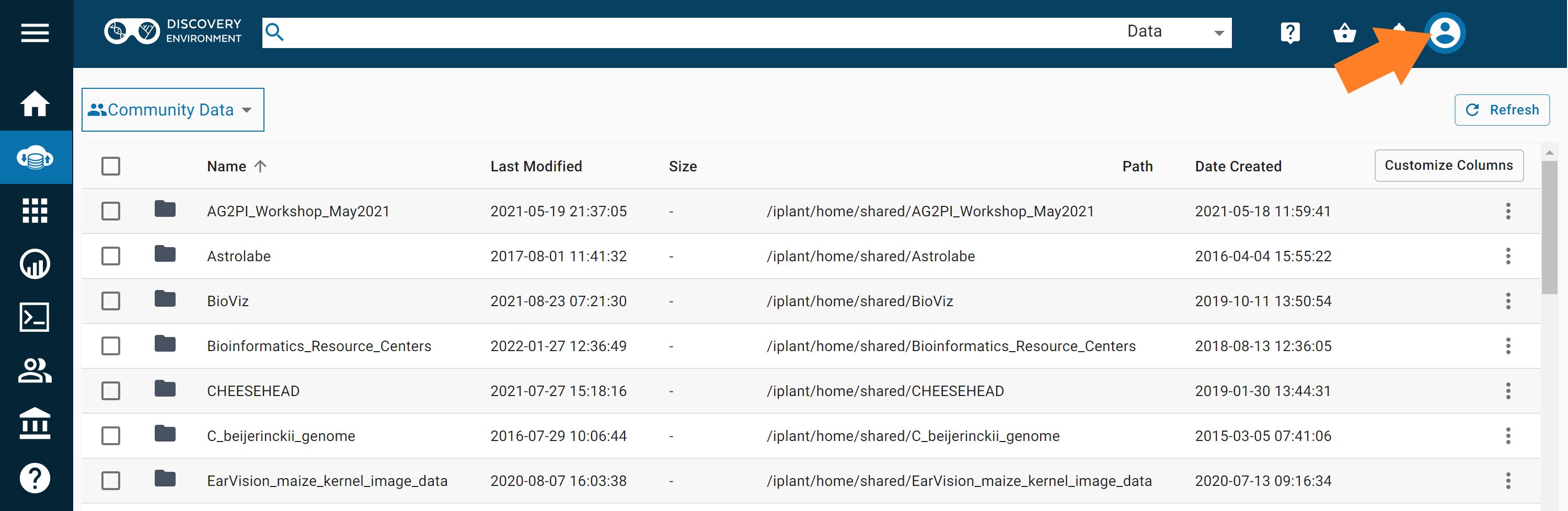
  <li>Access the CyVerse DataStore <a href="https://de.cyverse.org/">here</a></li>
  <li>Login to your account by clicking on the Login icon:
 <img src="/images/cyverse_login.png" alt="" /></li>
  <li>
    <p>You can now navigate the CyVerse DataStore. Check our phenomics research data collected by the Field Scanner <a href="https://de.cyverse.org/data/ds/iplant/home/shared/phytooracle?selectedOrder=asc&amp;selectedOrderBy=name&amp;selectedPage=0&amp;selectedRowsPerPage=100">here</a>
 <img src="/images/gantry_wsj.jpg" alt="" /></p>
  </li>
  <li>Follow the steps below to get iRODS command access on your terminal so that you can download large datasets.</li>
</ol>

<hr />

<h1 id="irods-installation">iRODS Installation</h1>

<h2 id="macos-users">macOS users</h2>

<ol>
  <li>Download the macOS installer <a href="https://cyverse.atlassian.net/wiki/download/attachments/241869823/cyverse-icommands-4.1.9.pkg?version=3&amp;modificationDate=1472820029000&amp;cacheVersion=1&amp;api=v2">here</a>.</li>
  <li>Follow the installation steps.</li>
  <li>
    <p>On your terminal, run:</p>

    <div class="language-bash highlighter-rouge"><div class="highlight"><pre class="highlight"><code> iinit
</code></pre></div>    </div>
  </li>
  <li>
    <p>Fill in the prompts with:</p>

    <table>
      <thead>
        <tr>
          <th style="text-align: center">Host name</th>
          <th style="text-align: center">Port #</th>
          <th style="text-align: center">Username</th>
          <th style="text-align: center">Zone</th>
          <th style="text-align: center">Password</th>
        </tr>
      </thead>
      <tbody>
        <tr>
          <td style="text-align: center">data.cyverse.org</td>
          <td style="text-align: center">1247</td>
          <td style="text-align: center">CyVerse User ID</td>
          <td style="text-align: center">iplant</td>
          <td style="text-align: center">CyVerse password</td>
        </tr>
      </tbody>
    </table>
  </li>
  <li>You’re now ready to start downloading data!</li>
</ol>

<h2 id="linux--windows-subsystem-for-linux-2-wsl2-users">Linux &amp; Windows Subsystem for Linux 2 (WSL2) users</h2>

<ol>
  <li>
    <p>Download the iRODS installation shell script and give it executable permissions:</p>

    <div class="language-bash highlighter-rouge"><div class="highlight"><pre class="highlight"><code> wget https://raw.githubusercontent.com/emmanuelgonz/emmanuelgonz.github.io/master/files/install_irods_copy.sh <span class="o">&amp;&amp;</span> <span class="nb">chmod </span>755 install_irods_copy.sh
</code></pre></div>    </div>
  </li>
  <li>
    <p>Run the installation script:</p>

    <div class="language-bash highlighter-rouge"><div class="highlight"><pre class="highlight"><code> <span class="nb">sudo</span> ./install_irods_copy.sh
</code></pre></div>    </div>
  </li>
  <li>
    <p>Log in to iRODS:</p>

    <div class="language-bash highlighter-rouge"><div class="highlight"><pre class="highlight"><code> iinit
</code></pre></div>    </div>
  </li>
  <li>
    <p>Fill in the prompts with:</p>

    <table>
      <thead>
        <tr>
          <th style="text-align: center">Host name</th>
          <th style="text-align: center">Port #</th>
          <th style="text-align: center">Username</th>
          <th style="text-align: center">zone</th>
          <th style="text-align: center">Password</th>
        </tr>
      </thead>
      <tbody>
        <tr>
          <td style="text-align: center">data.cyverse.org</td>
          <td style="text-align: center">1247</td>
          <td style="text-align: center">CyVerse User ID</td>
          <td style="text-align: center">iplant</td>
          <td style="text-align: center">CyVerse password</td>
        </tr>
      </tbody>
    </table>
  </li>
  <li>
    <p>You’re ready to start downloading some data!</p>
  </li>
</ol>

<hr />

<h1 id="irods-data-download">iRODS Data Download</h1>
<p>Let’s say we want to download some hyperspectral data on the phytooracle CyVerse DataStore. Follow the steps below to do just that:</p>

<ol>
  <li>
    <p>Open the <a href="https://de.cyverse.org/data/ds/iplant/home/shared/phytooracle/season_12_sorghum_soybean_sunflower_tepary_yr_2021/level_0/VNIR?selectedOrder=asc&amp;selectedOrderBy=name&amp;selectedPage=0&amp;selectedRowsPerPage=100">CyVerse DataStore website</a></p>
  </li>
  <li>
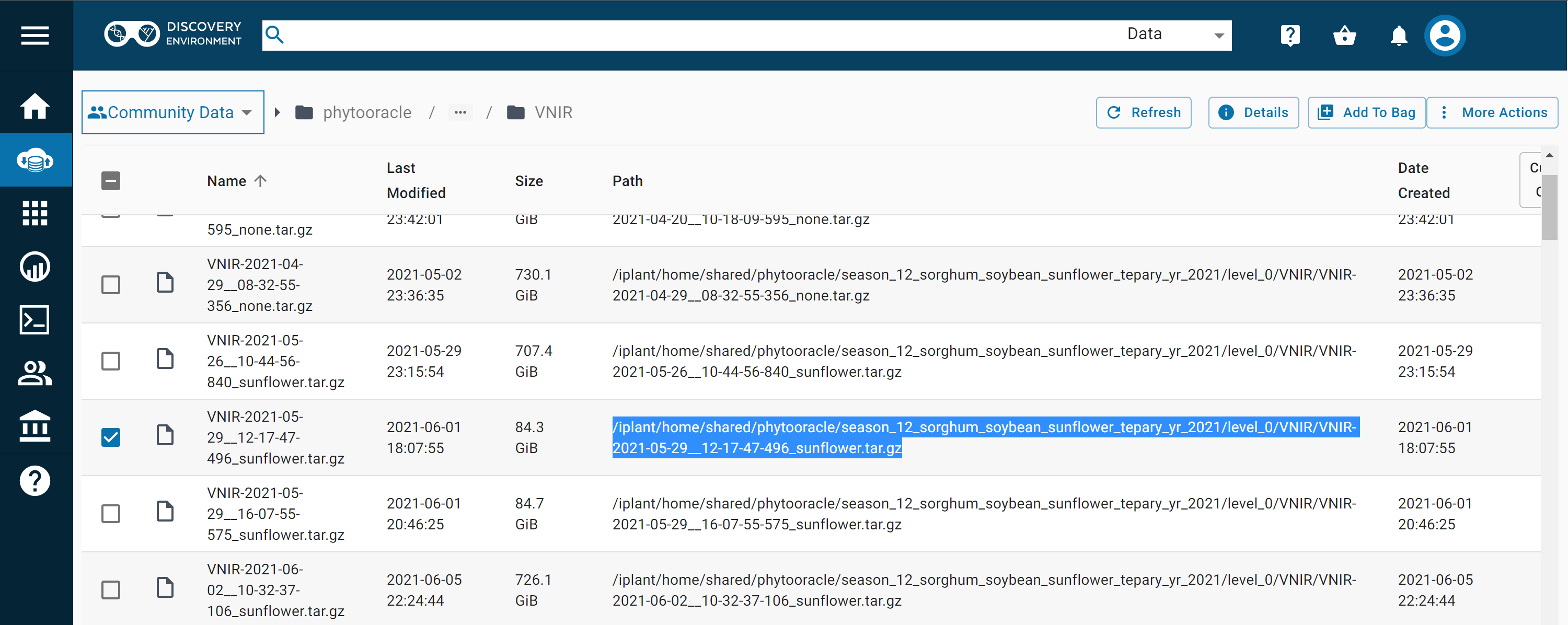
    <p>Find the file you’d like to download
 <img src="/images/vnir_download.png" alt="" /></p>
  </li>
  <li>
    <p>To download the highlighted file above, copy the “Path” and run the <code class="language-plaintext highlighter-rouge">iget</code> command. Below is an example:</p>

    <div class="language-bash highlighter-rouge"><div class="highlight"><pre class="highlight"><code> iget <span class="nt">-KPVT</span> /iplant/home/shared/phytooracle/season_12_sorghum_soybean_sunflower_tepary_yr_2021/level_0/VNIR/VNIR-2021-05-29__12-17-47-496_sunflower.tar.gz
</code></pre></div>    </div>

    <hr />
    <p><strong>NOTE</strong></p>

    <p>Below is an explanation of each flag used above:</p>
    <ul>
      <li>-K Verify the checksum</li>
      <li>-P Output the progress of the download</li>
      <li>-V Verbose</li>
      <li>-T Renew socket connection after 10 minutes</li>
    </ul>

    <p>It’s recommended to use the -KT flags, as it prevents errors due to internet connectivity. To see a full list of other flags/options, <a href="https://docs.irods.org/master/icommands/user/#iget">click here</a>.</p>

    <hr />
  </li>
</ol>]]></content><author><name>Yiheng An</name><email>yiheng.an.usa@gmail.com</email></author><category term="terminal" /><category term="bash" /><category term="github" /><category term="git" /><category term="irods" /><category term="cyverse" /><category term="data" /><category term="science" /><category term="computing" /><category term="soft skills" /><category term="linux" /><summary type="html"><![CDATA[Learn how to install and use the Integrated Rule-Oriented Data System (iRODS).]]></summary></entry><entry><title type="html">Creating an academic website on GitHub</title><link href="https://yihengan.com/posts/2021/10/academic-pages/" rel="alternate" type="text/html" title="Creating an academic website on GitHub" /><published>2021-10-04T00:00:00-07:00</published><updated>2021-10-04T00:00:00-07:00</updated><id>https://yihengan.com/posts/2021/10/academic-pages</id><content type="html" xml:base="https://yihengan.com/posts/2021/10/academic-pages/"><![CDATA[<p>Learn how to create a website to showcase your academic achievements!
<!--more-->
This tutorial will walk you through setting up an academic website on GitHub. You can add publications, blog posts, and a CV to your website to share with people as you network! We will get some more practice with the terminal by interacting with the Git command line interface (CLI).</p>

<h1 id="preparation-reviewed-in-previous-workshop">Preparation (reviewed in previous workshop)</h1>

<ol>
  <li>
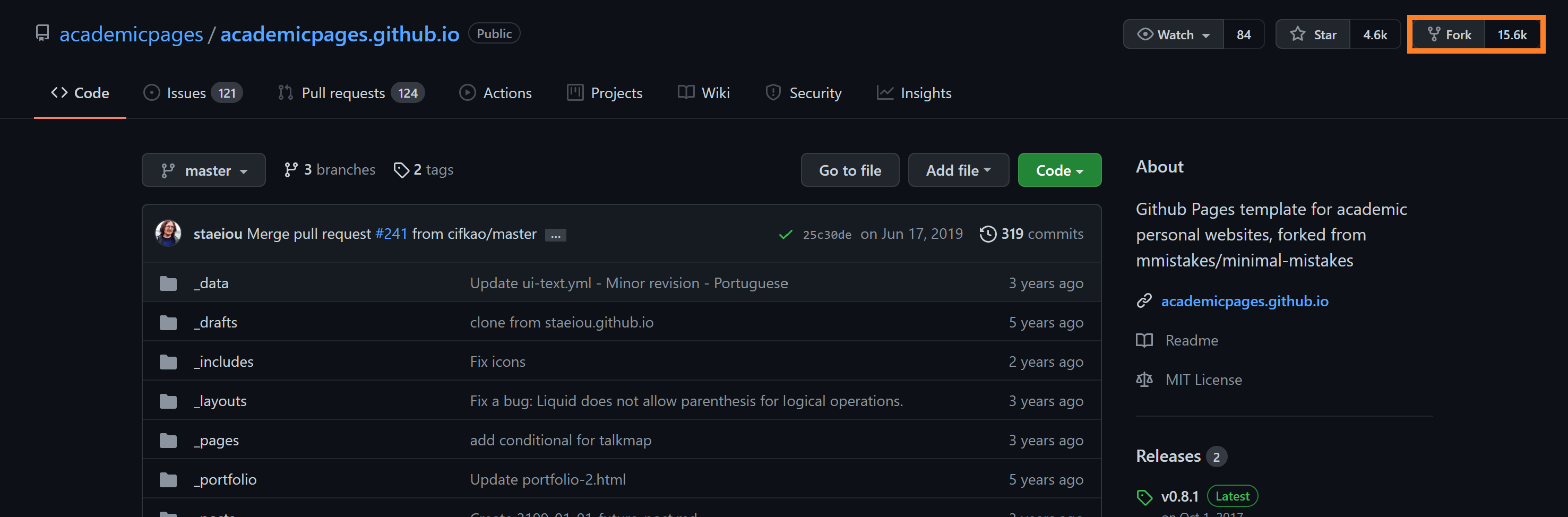
    <p>Fork the <a href="https://github.com/academicpages/academicpages.github.io">Academic Pages</a> repo.</p>

    <p><img src="/images/fork_repo.png" alt="" /></p>
  </li>
  <li>
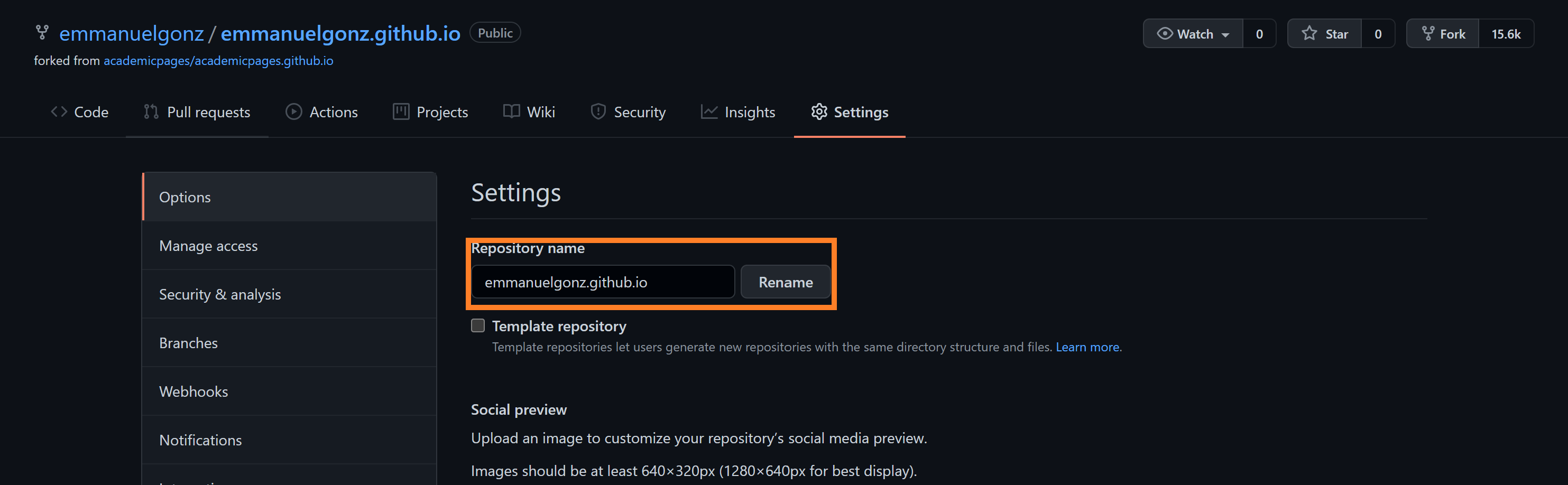
    <p>Rename the repo to your GitHub username:</p>

    <p><img src="/images/rename_repo.png" alt="" /></p>
  </li>
  <li>
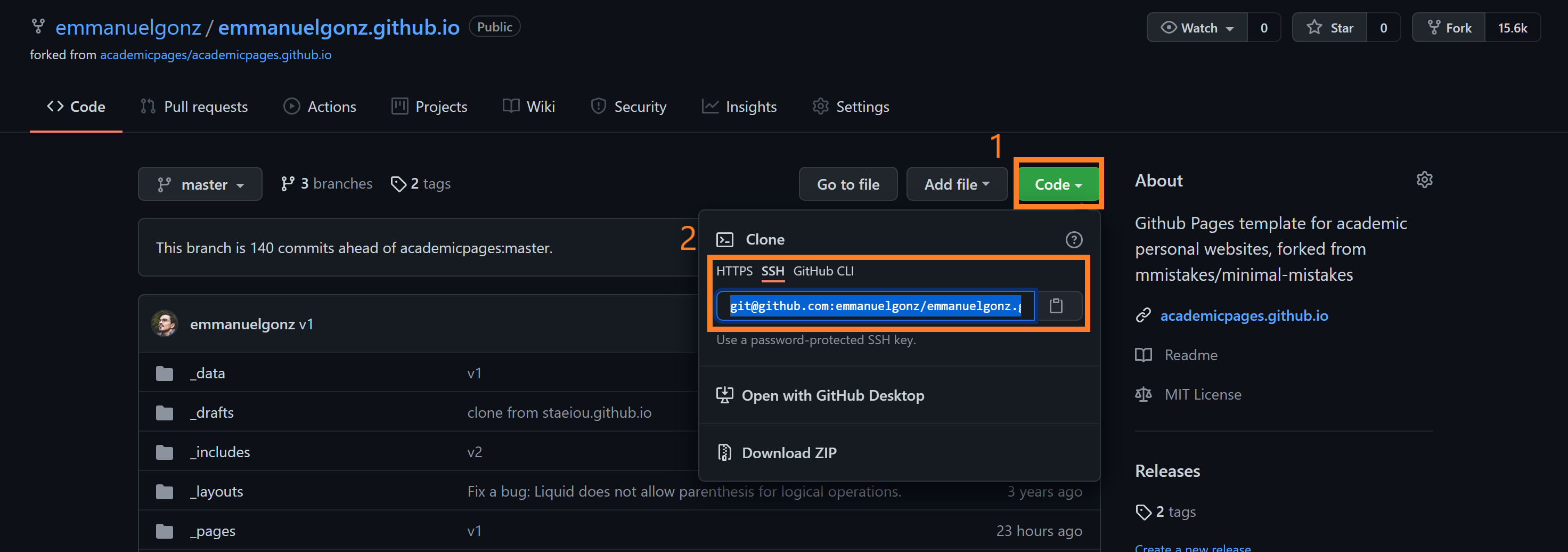
    <p>Click on the green “Code” button and copy the link to clone your own repo.</p>

    <p><img src="/images/clone_repo.png" alt="" /></p>
  </li>
  <li>
    <p>On your terminal, run:</p>

    <div class="language-bash highlighter-rouge"><div class="highlight"><pre class="highlight"><code> git clone &lt;insert <span class="nb">link </span>here&gt;
</code></pre></div>    </div>
  </li>
</ol>

<hr />

<h1 id="about-page">About page</h1>

<ol>
  <li>
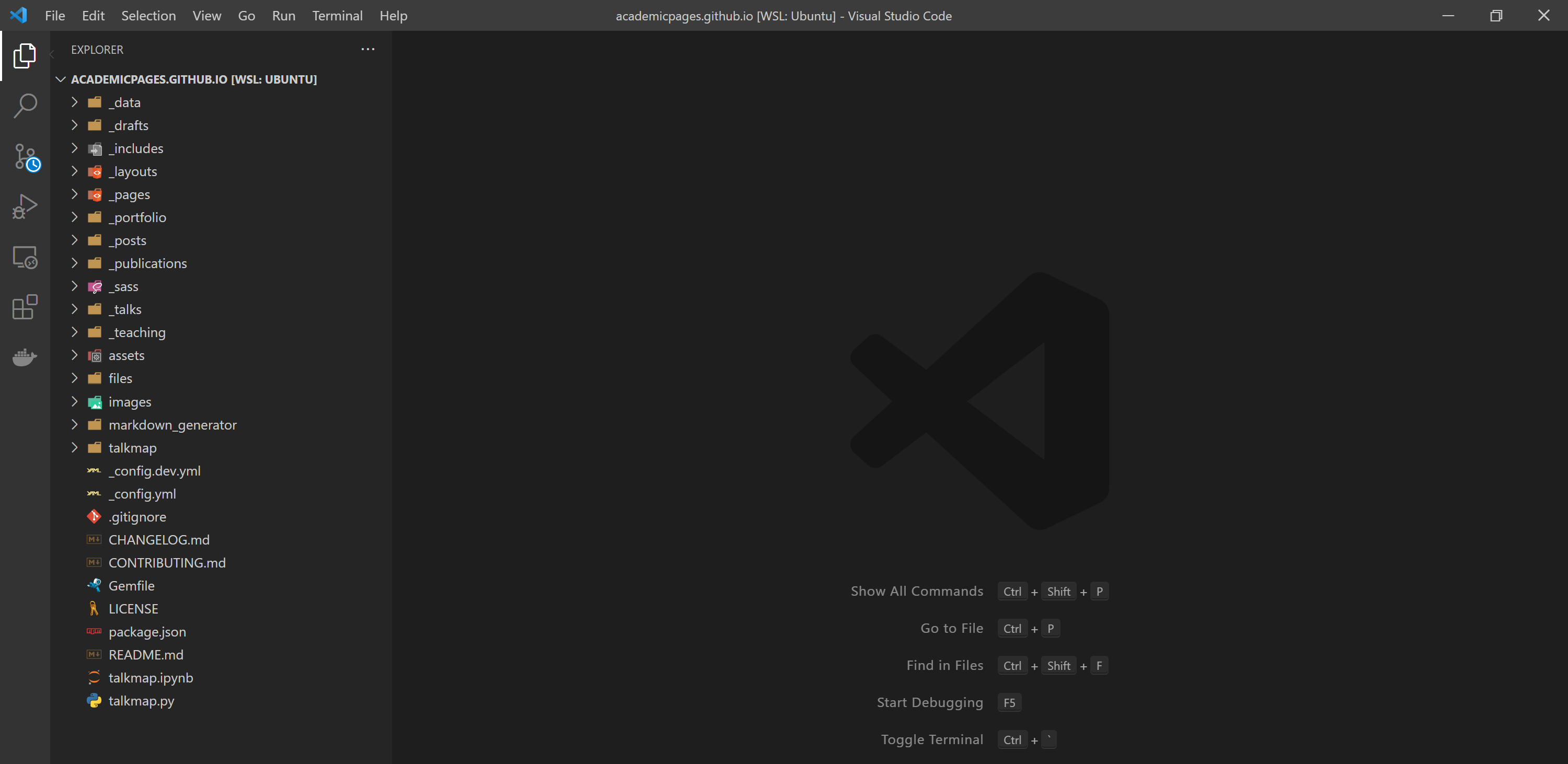
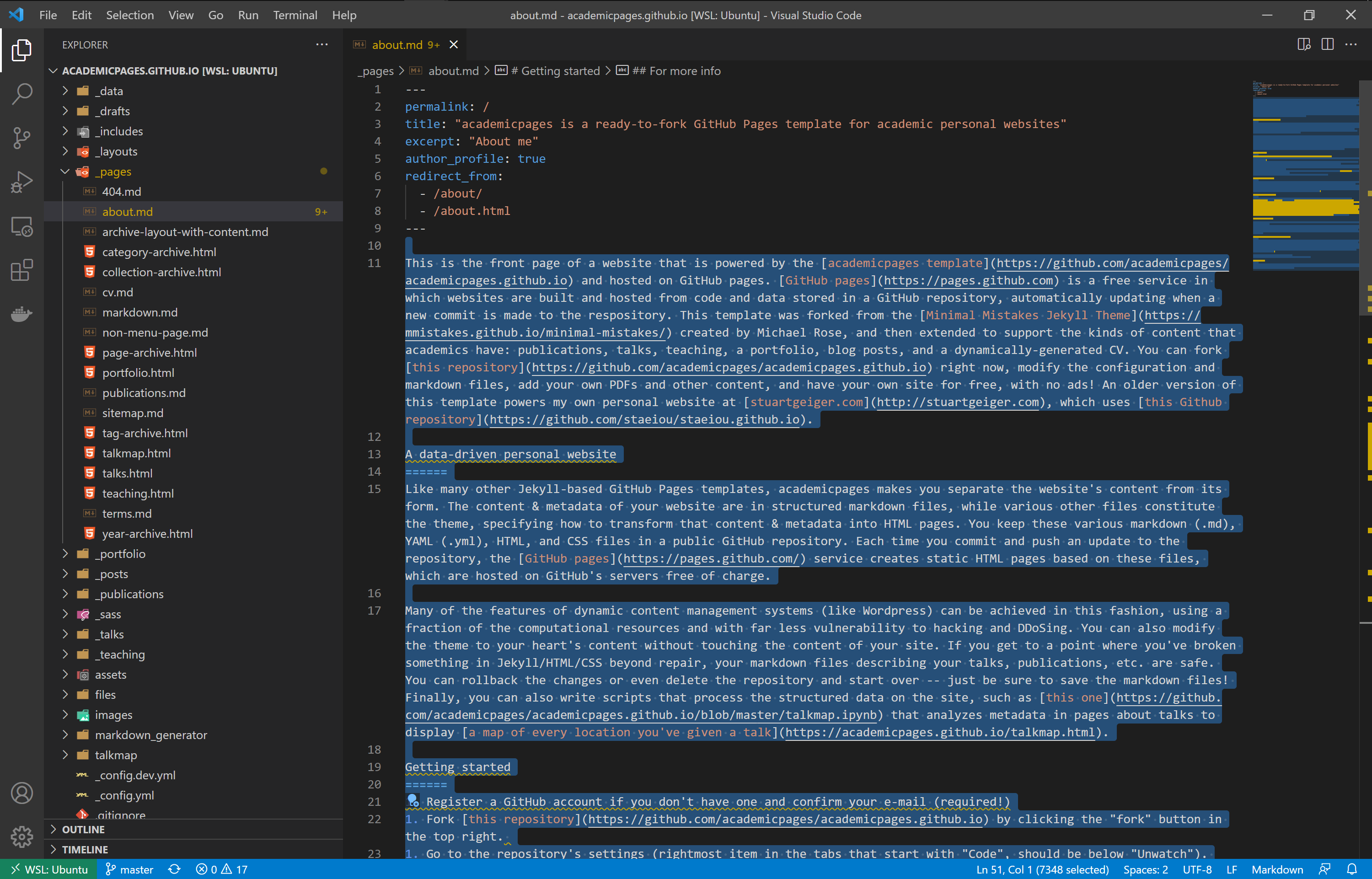
    <p>Open your integrated development environment (IDE) and open up the directory containing your cloned repo.</p>

    <p><img src="/images/ide_clone_2.png" alt="" /></p>
  </li>
  <li>
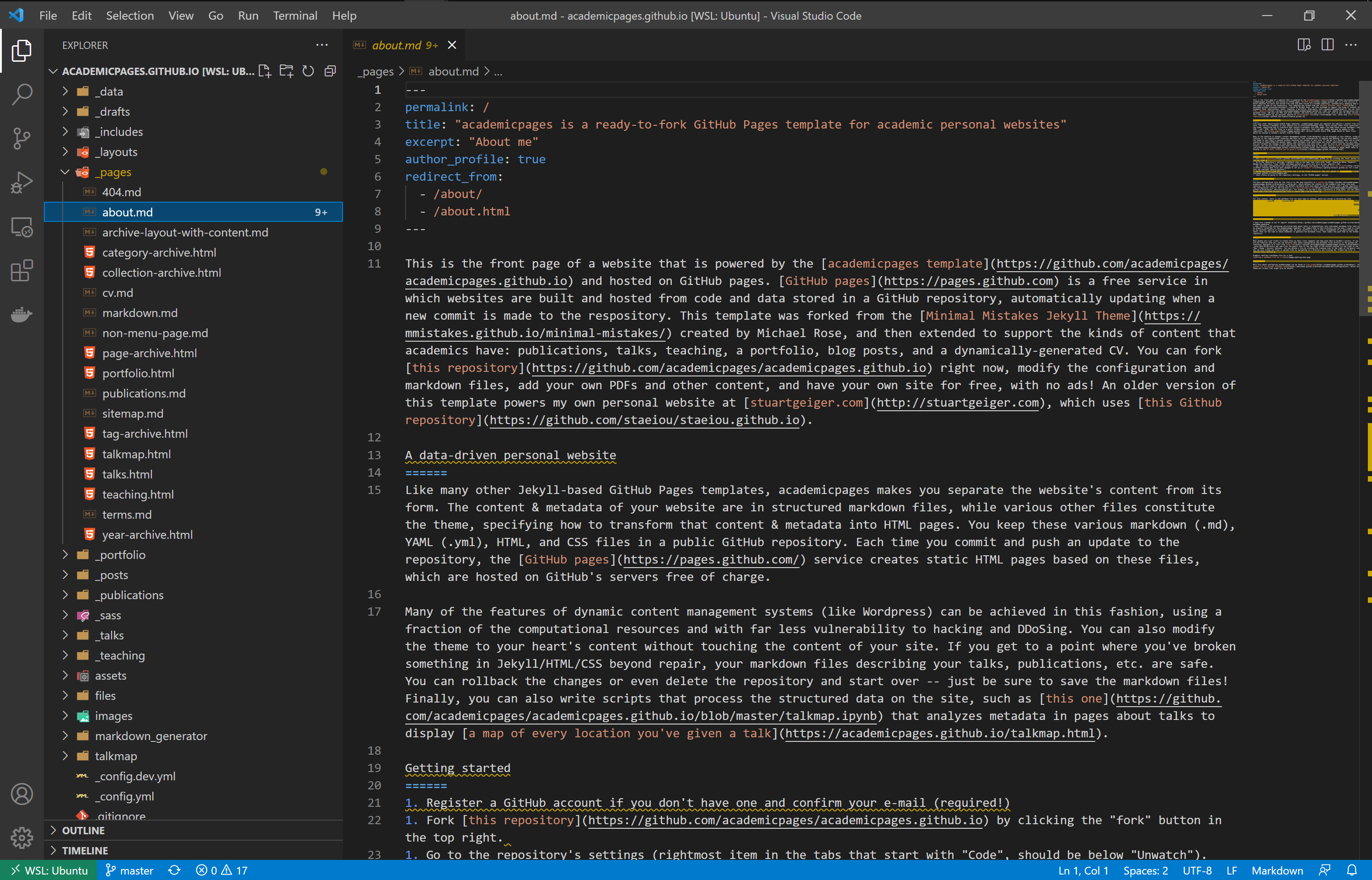
    <p>Open the <code class="language-plaintext highlighter-rouge">_pages</code> directory and click on the <code class="language-plaintext highlighter-rouge">about.md</code> file.</p>

    <p><img src="/images/about_md.png" alt="" /></p>
  </li>
  <li>
    <p>Remove all the text under line 9 (highligthed in blue).</p>

    <p><img src="/images/edit_about.png" alt="" /></p>
  </li>
  <li>
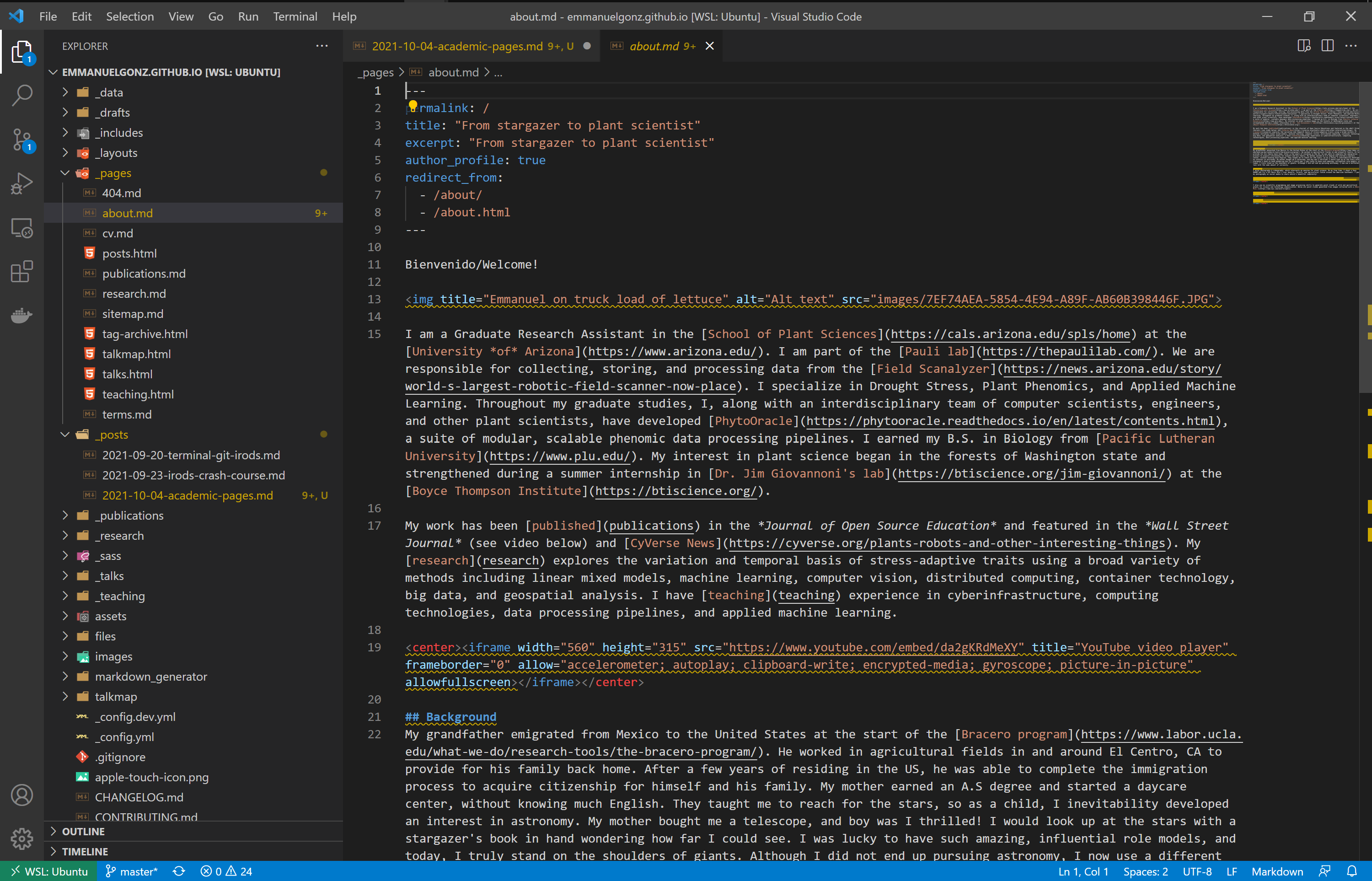
    <p>Edit the header information (title, excerpt)</p>

    <p><img src="/images/fill_about.png" alt="" /></p>
  </li>
  <li>
    <p>You can add an image by placing it in the <code class="language-plaintext highlighter-rouge">images</code> directory. Use the following code to include it in your page:</p>

    <div class="language-bash highlighter-rouge"><div class="highlight"><pre class="highlight"><code> &lt;img <span class="nv">title</span><span class="o">=</span><span class="s2">"&lt;fill in with caption title&gt;"</span> <span class="nv">alt</span><span class="o">=</span><span class="s2">"Alt text"</span> <span class="nv">src</span><span class="o">=</span><span class="s2">"images/&lt;fill in with image name&gt;"</span><span class="o">&gt;</span>
</code></pre></div>    </div>
  </li>
  <li>
    <p>Add, commit, and push your changes:</p>

    <div class="language-bash highlighter-rouge"><div class="highlight"><pre class="highlight"><code> git add <span class="k">*</span>
</code></pre></div>    </div>

    <div class="language-bash highlighter-rouge"><div class="highlight"><pre class="highlight"><code> git commit <span class="nt">-m</span> <span class="s1">'changes to about me'</span>
</code></pre></div>    </div>

    <div class="language-bash highlighter-rouge"><div class="highlight"><pre class="highlight"><code> git push origin
</code></pre></div>    </div>
  </li>
  <li>
    <p>Now, navigate to your website, which is accessible at <code class="language-plaintext highlighter-rouge">&lt;GitHub username&gt;.github.io</code></p>
  </li>
</ol>

<hr />

<h1 id="publications-page">Publications page</h1>

<ol>
  <li>
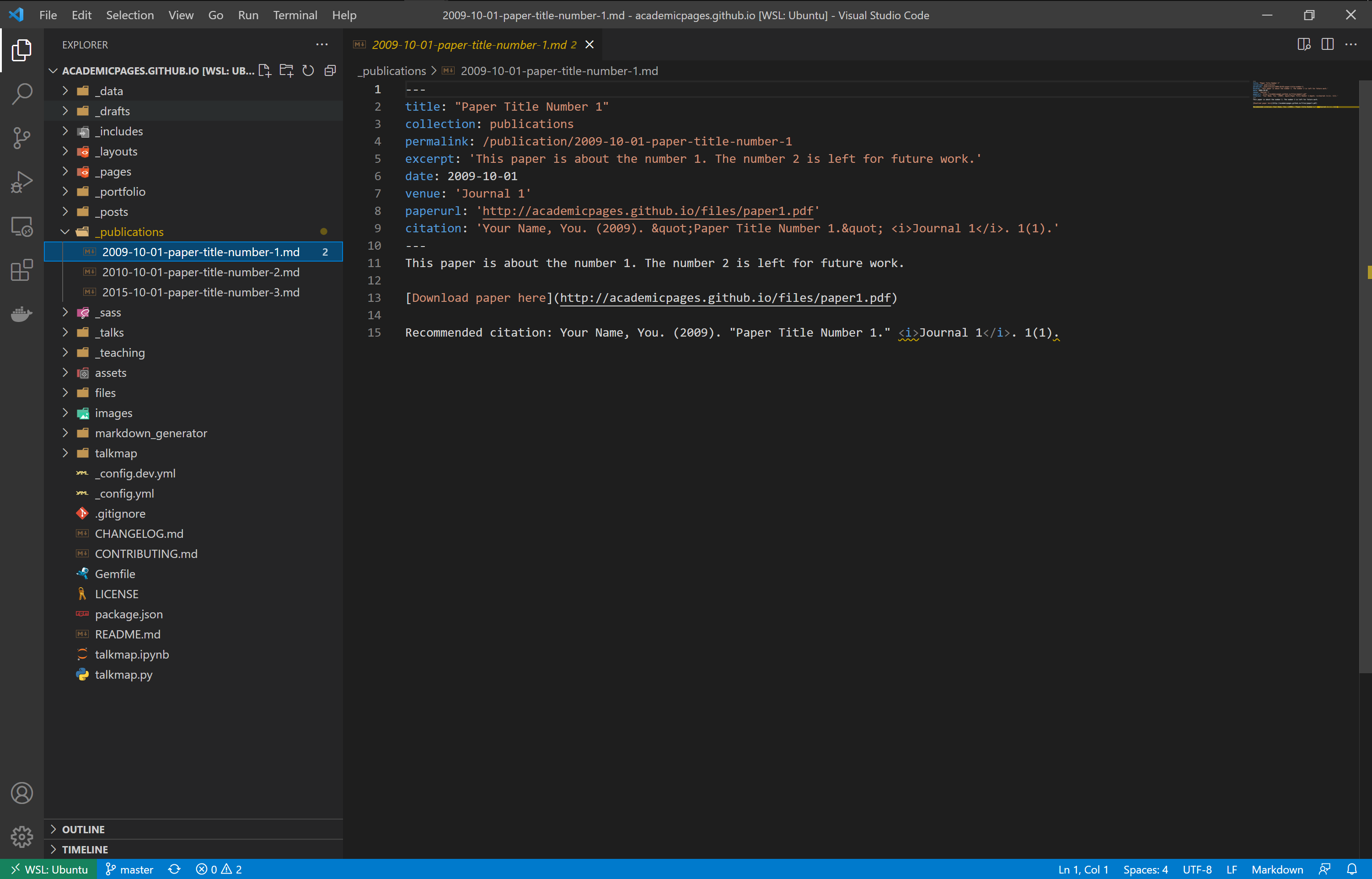
    <p>Open the <code class="language-plaintext highlighter-rouge">_publications</code> directory and click on the <code class="language-plaintext highlighter-rouge">2009-10-01-paper-title-number-1.md</code> file.</p>

    <p><img src="/images/publications.png" alt="" /></p>
  </li>
  <li>
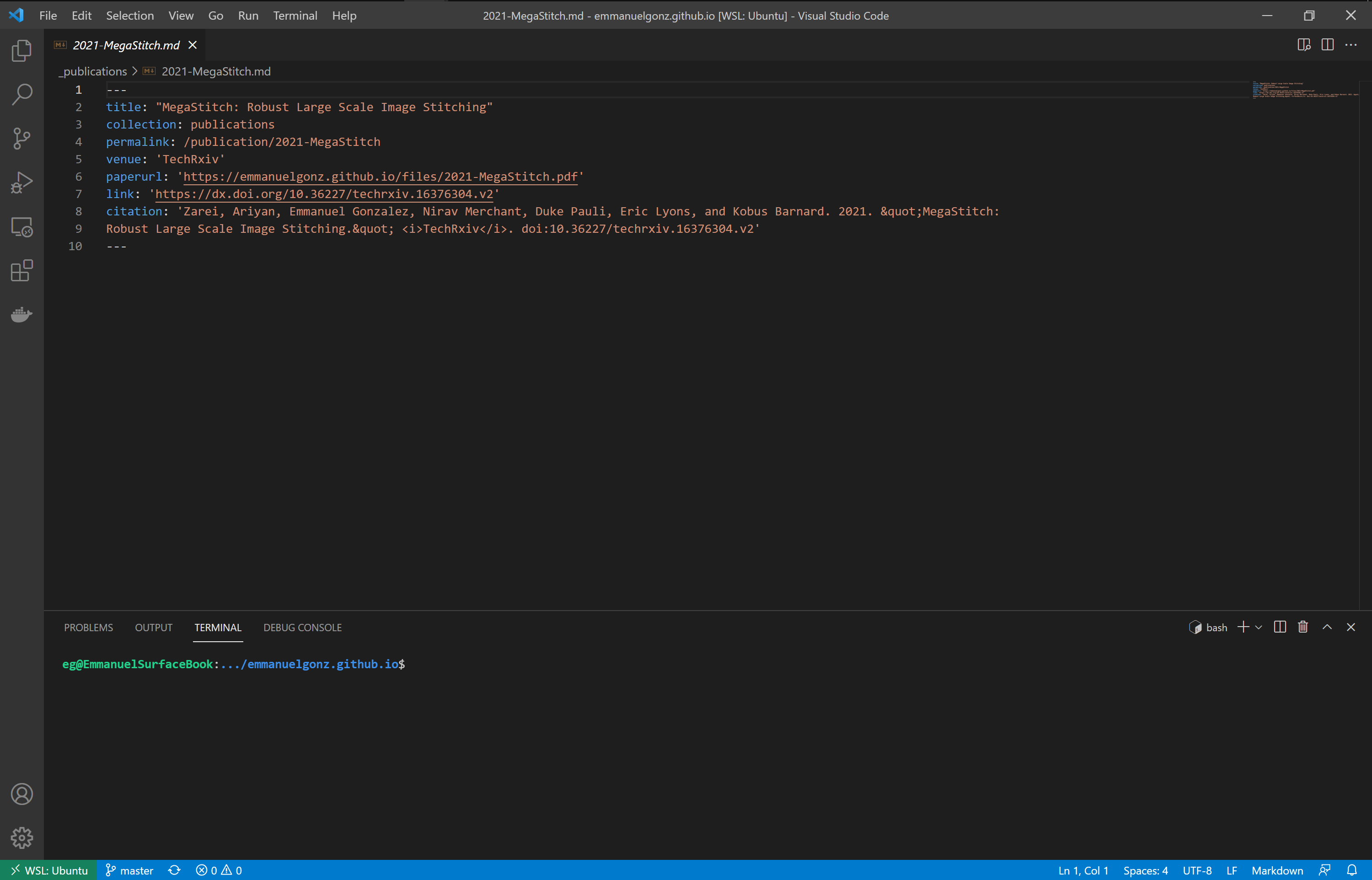
    <p>Edit the title, permalink, etc. Example below:</p>

    <p><img src="/images/publications_example.png" alt="" /></p>
  </li>
  <li>
    <p>Create a new file for each publication.</p>
  </li>
  <li>
    <p>Add, commit, and push your changes:</p>

    <div class="language-bash highlighter-rouge"><div class="highlight"><pre class="highlight"><code> git add <span class="k">*</span>
</code></pre></div>    </div>

    <div class="language-bash highlighter-rouge"><div class="highlight"><pre class="highlight"><code> git commit <span class="nt">-m</span> <span class="s1">'changes to publications'</span>
</code></pre></div>    </div>

    <div class="language-bash highlighter-rouge"><div class="highlight"><pre class="highlight"><code> git push origin
</code></pre></div>    </div>
  </li>
  <li>
    <p>Now, navigate to your website, which is accessible at <code class="language-plaintext highlighter-rouge">&lt;GitHub username&gt;.github.io</code></p>
  </li>
</ol>

<hr />

<h1 id="cv-page">CV page</h1>

<ol>
  <li>
    <p>Open the Open the <code class="language-plaintext highlighter-rouge">_pages</code> directory and click on the <code class="language-plaintext highlighter-rouge">cv.md</code> file.</p>
  </li>
  <li>
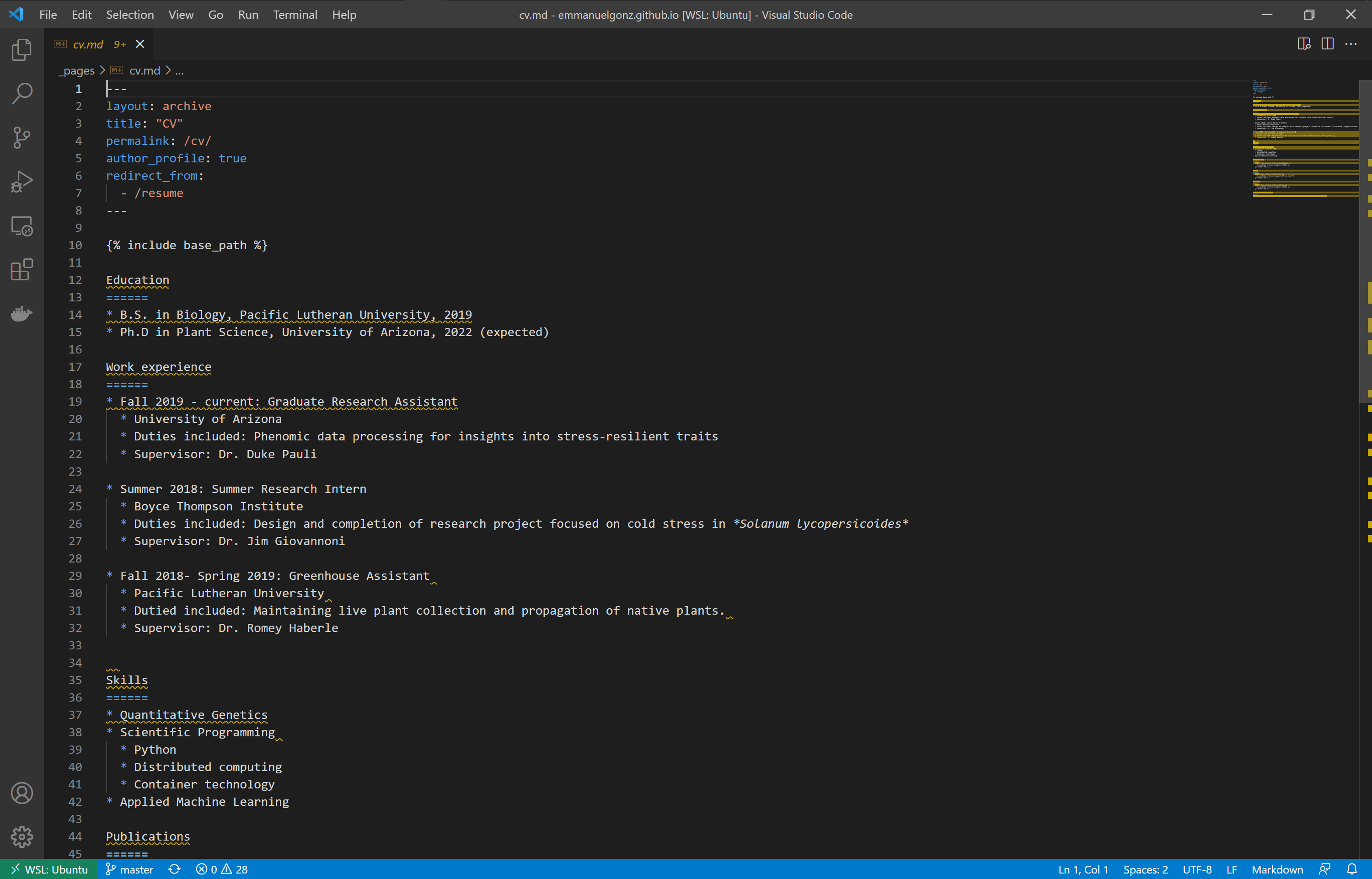
    <p>Add your education, work experience, and skills. Example below:
 <img src="/images/cv_example.png" alt="" /></p>
  </li>
  <li>
    <p>Add, commit, and push your changes:</p>

    <div class="language-bash highlighter-rouge"><div class="highlight"><pre class="highlight"><code> git add <span class="k">*</span>
</code></pre></div>    </div>

    <div class="language-bash highlighter-rouge"><div class="highlight"><pre class="highlight"><code> git commit <span class="nt">-m</span> <span class="s1">'changes to cv'</span>
</code></pre></div>    </div>

    <div class="language-bash highlighter-rouge"><div class="highlight"><pre class="highlight"><code> git push origin
</code></pre></div>    </div>
  </li>
  <li>
    <p>Now, navigate to your website, which is accessible at <code class="language-plaintext highlighter-rouge">&lt;GitHub username&gt;.github.io</code></p>
  </li>
</ol>]]></content><author><name>Yiheng An</name><email>yiheng.an.usa@gmail.com</email></author><category term="webpage" /><category term="academic" /><category term="github" /><category term="git" /><category term="research" /><category term="science" /><category term="computing" /><category term="soft skills" /><summary type="html"><![CDATA[Learn how to create a website to showcase your academic achievements!]]></summary></entry><entry><title type="html">iRODS Crash Course</title><link href="https://yihengan.com/posts/2021/09/irods-crash-course/" rel="alternate" type="text/html" title="iRODS Crash Course" /><published>2021-09-23T00:00:00-07:00</published><updated>2021-09-23T00:00:00-07:00</updated><id>https://yihengan.com/posts/2021/09/irods-crash-course</id><content type="html" xml:base="https://yihengan.com/posts/2021/09/irods-crash-course/"><![CDATA[<p>Learn how to use iRODS for your research data management needs. 
<!--more-->
This tutorial will walk you through downloading and uploading data using iRODS.</p>

<ol>
  <li>
    <p>Let’s download some files, run:</p>

    <div class="language-bash highlighter-rouge"><div class="highlight"><pre class="highlight"><code> iget <span class="nt">-N</span> 0 <span class="nt">-PVT</span> /iplant/home/emmanuelgonzalez/acic_2021_tutorials/mavic_mini_2_sorghum.mp4
</code></pre></div>    </div>
  </li>
  <li>Did you run into any problems?
    <ul>
      <li>I did not share the file with you, that’s why you got that error!</li>
    </ul>
  </li>
  <li>
    <p>Now that I have shared the file with you, run the command again:</p>

    <div class="language-bash highlighter-rouge"><div class="highlight"><pre class="highlight"><code> iget <span class="nt">-N</span> 0 <span class="nt">-PVT</span> /iplant/home/emmanuelgonzalez/acic_2021_tutorials/mavic_mini_2_sorghum.mp4
</code></pre></div>    </div>
  </li>
  <li>
    <p>To open the folder in which you downloaded the file run the following command depending on your OS:</p>

    <ul>
      <li>
        <p>macOS</p>

        <div class="language-bash highlighter-rouge"><div class="highlight"><pre class="highlight"><code>  open <span class="nb">.</span>
</code></pre></div>        </div>
      </li>
      <li>
        <p>WSL 2</p>

        <div class="language-bash highlighter-rouge"><div class="highlight"><pre class="highlight"><code>  explorer.exe <span class="nb">.</span>
</code></pre></div>        </div>
      </li>
      <li>
        <p>Linux</p>

        <div class="language-bash highlighter-rouge"><div class="highlight"><pre class="highlight"><code>  xdg-open <span class="nb">.</span>
</code></pre></div>        </div>
      </li>
    </ul>
  </li>
  <li>
    <p>Now upload the file to your CyVerse Data Store, run:</p>

    <div class="language-bash highlighter-rouge"><div class="highlight"><pre class="highlight"><code> iput <span class="nt">-N</span> 0 <span class="nt">-PVT</span> mavic_mini_2_sorghum.mp4
</code></pre></div>    </div>
  </li>
  <li>
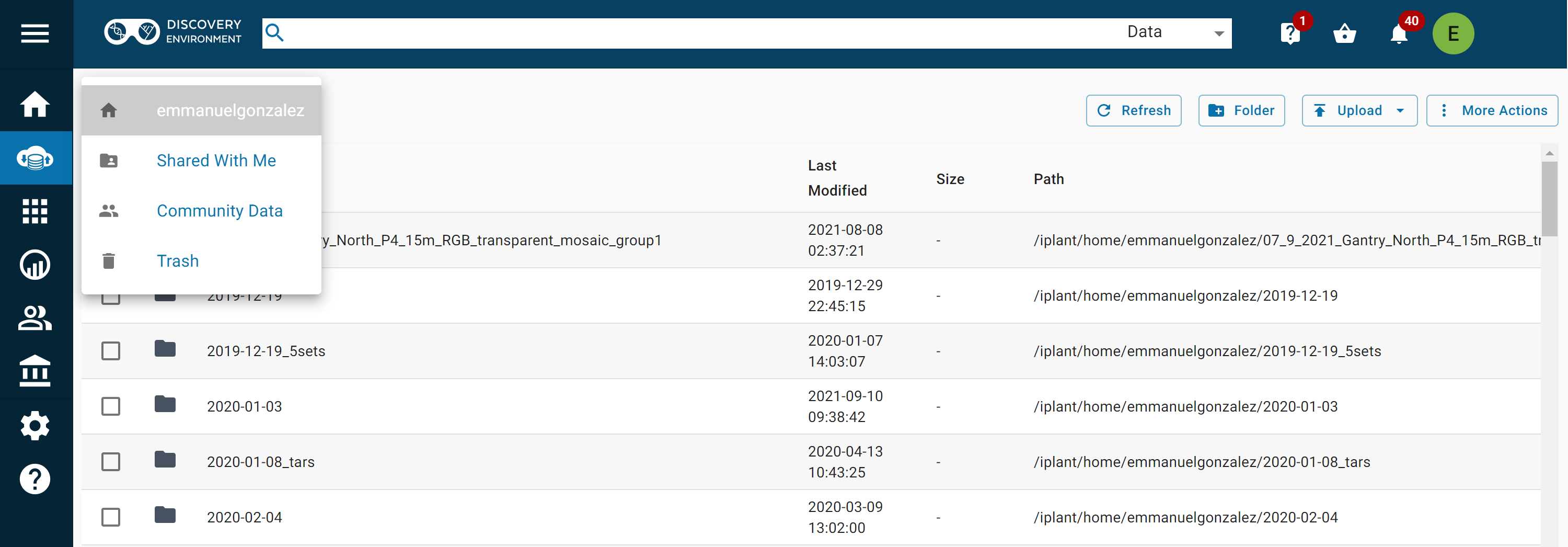
    <p>Go to the <a href="http://de.cyverse.org/">CyVerse Data Store</a> and navigate to your home directory.</p>

    <p><img src="/images/cyverse_home.png" alt="" /></p>
  </li>
  <li>
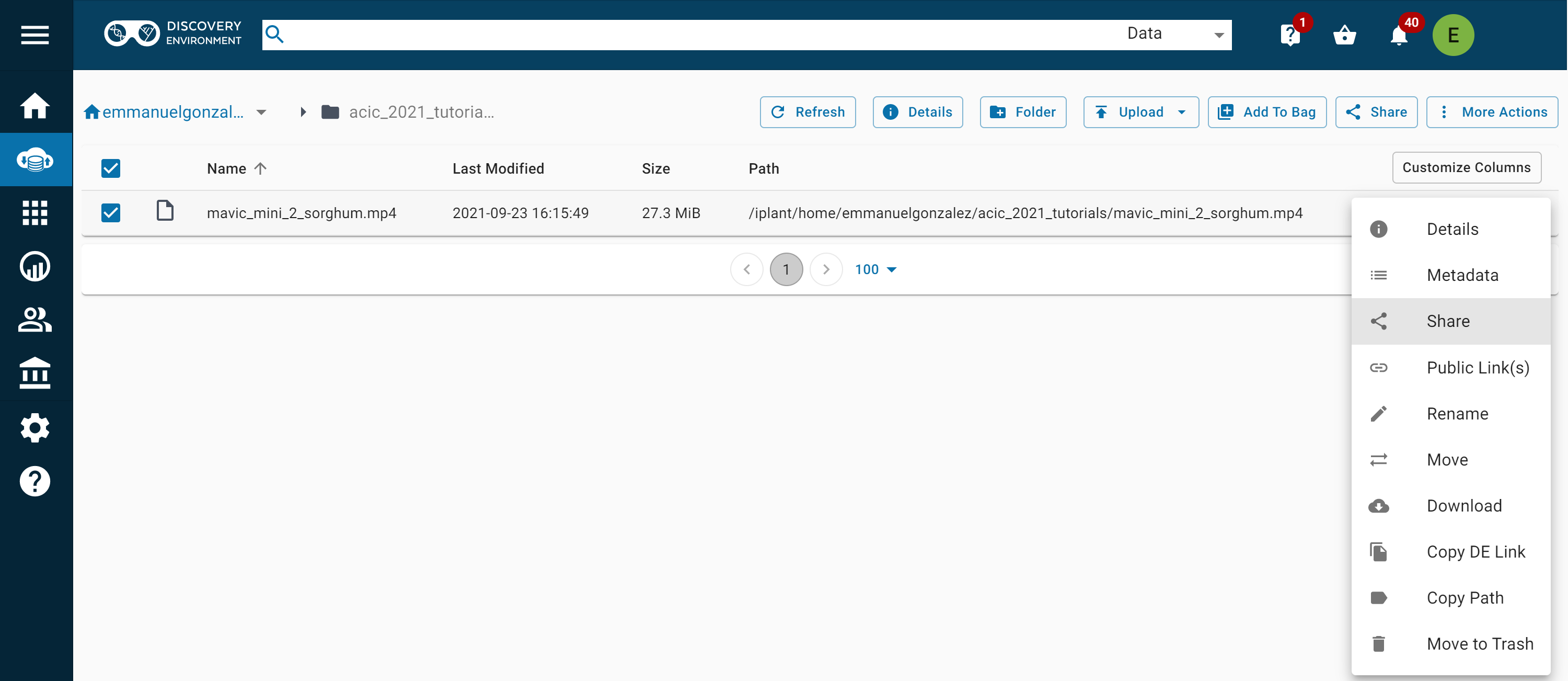
    <p>You can share a file by logging into the <a href="http://de.cyverse.org/">CyVerse Data Store</a>, clicking on the 3 dots on the far right and clicking “Share.”</p>

    <p><img src="/images/share_file.png" alt="" /></p>
  </li>
  <li>Share the file with someone present on the Zoom call.</li>
  <li>
    <p>Congratulations, you are now an iRODS expert!</p>

    <p><img src="/images/5170563.jpg" alt="" /></p>
  </li>
</ol>]]></content><author><name>Yiheng An</name><email>yiheng.an.usa@gmail.com</email></author><category term="terminal" /><category term="bash" /><category term="github" /><category term="git" /><category term="irods" /><category term="cyverse" /><category term="data" /><category term="science" /><category term="computing" /><category term="soft skills" /><category term="linux" /><summary type="html"><![CDATA[Learn how to use iRODS for your research data management needs.]]></summary></entry><entry><title type="html">Terminal, GitHub, and iRODS Essentials</title><link href="https://yihengan.com/posts/2021/09/terminal-git-irods/" rel="alternate" type="text/html" title="Terminal, GitHub, and iRODS Essentials" /><published>2021-09-20T00:00:00-07:00</published><updated>2021-09-20T00:00:00-07:00</updated><id>https://yihengan.com/posts/2021/09/terminal-git-irods</id><content type="html" xml:base="https://yihengan.com/posts/2021/09/terminal-git-irods/"><![CDATA[<p>Learn how to leverage the terminal for GitHub version control and Integrated Rule-Oriented Data System (iRODS) data management!
<!--more-->
This tutorial is split into three parts:</p>
<ul>
  <li><strong>Part A</strong>: Terminal
    <ul>
      <li>Set up a Linux workspace for scientific computing.</li>
    </ul>
  </li>
  <li><strong>Part B</strong>: GitHub
    <ul>
      <li>Build a website to share this with employers, network connections, etc.</li>
    </ul>
  </li>
  <li><strong>Part C</strong>: iRODS
    <ul>
      <li>Set up iRODS within your terminal and upload/download data.</li>
    </ul>
  </li>
</ul>

<blockquote>
  <p>Tutorial requirements:</p>

  <ul>
    <li>
      <p>Computer, either Windows, Linux, or Mac OS</p>
    </li>
    <li>
      <p>CyVerse account, get one <a href="https://user.cyverse.org/register">here</a></p>
    </li>
    <li>
      <p>GitHub account, get one <a href="https://github.com/signup?ref_cta=Sign+up&amp;ref_loc=header+logged+out&amp;ref_page=%2F&amp;source=header-home">here</a></p>
    </li>
  </ul>
</blockquote>

<p><strong><em>Note: We may run into errors during this workshop. Do not be discouraged, this is part of the workspace set up. It is painful at first, but once it’s over, it’s worth it!</em></strong></p>

<hr />

<h1 id="part-a-terminal">Part A: Terminal</h1>

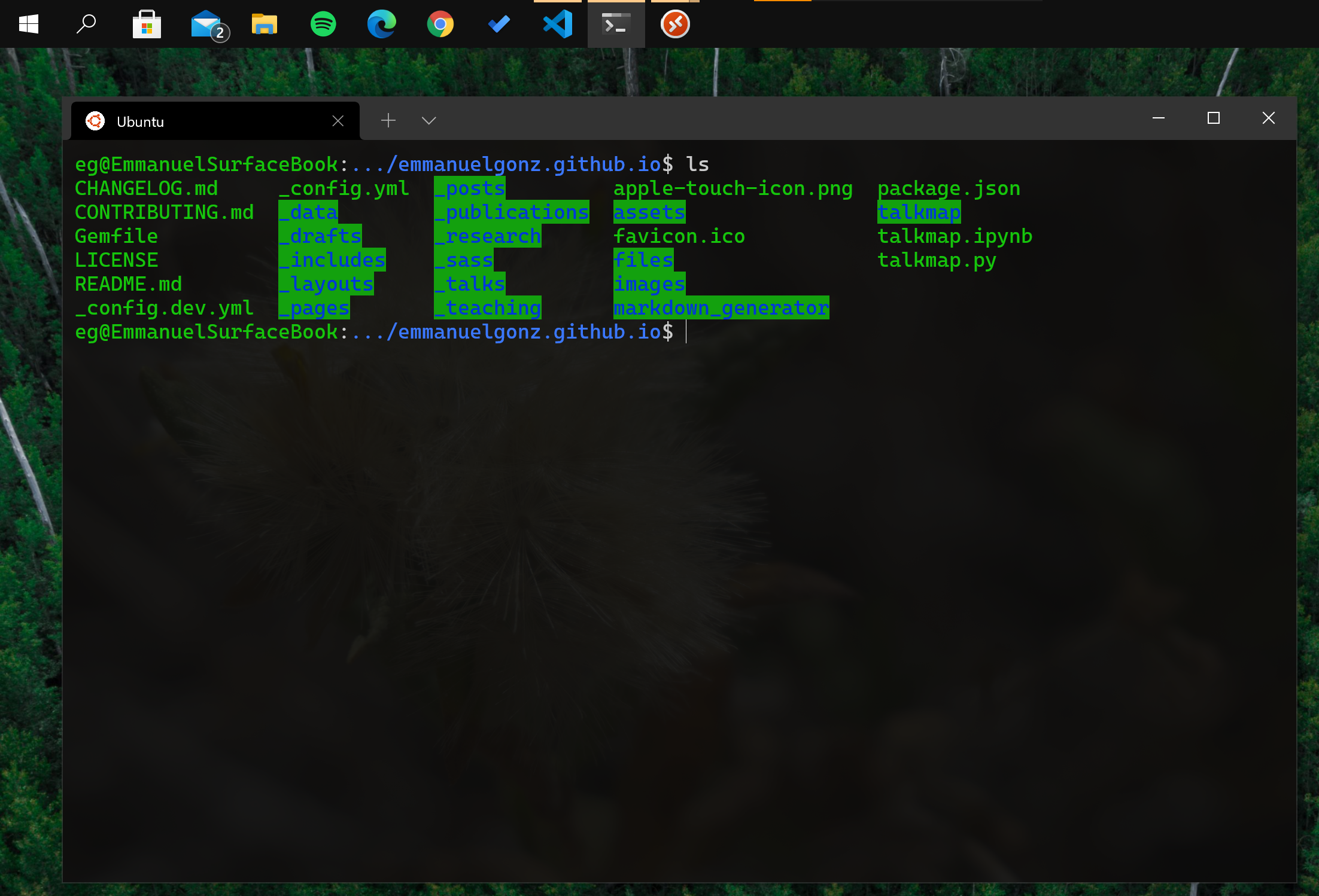
<p>Your terminal will look and act differently depending on your operating system (OS). There are a variety of OSs out there including Ubuntu, Windows, Mac OS, etc. Since the majority of scientific computing is done on <a href="https://www.linux.org/">Linux</a>, that will be the focus of this tutorial.</p>

<h2 id="macos--linux-users">macOS &amp; Linux users</h2>

<p>You are ready to proceed. Just open your terminal! I strongly suggest you pay attention to the Windows Subsystem for Linux 2 (WSL 2) set up, as you may find this useful when you develop for other OSs.</p>

<h2 id="windows-users">Windows users</h2>

<p>We need to download and install WSL 2. I use this as my go-to workspace, as it allows me to run my code on Linux but have my computer run Windows 10. You will have a Linux terminal running on the subsystem, but your main OS will be Windows! Isn’t that cool?</p>

<p><img src="/images/wsl2_example.png" alt="" /></p>

<p>Let’s get this set up on your computer by following the steps below:</p>

<ol>
  <li>
    <p>Open Powershell as Admin and run:</p>

    <pre><code class="language-cmd"> dism.exe /online /enable-feature /featurename:Microsoft-Windows-Subsystem-Linux /all /norestart
</code></pre>
  </li>
  <li>
    <p>Right-click on the Windows Start icon, click on Run, type <code class="language-plaintext highlighter-rouge">winver</code>. Confirm that you meet the requirements below.</p>

    <blockquote>
      <p><strong><em>WSL 2 Requirements</em></strong></p>

      <p>x64 systems: Version 1903 or higher, with Build 18362 or higher.</p>

      <p>ARM64 systems: Version 2004 or higher, with Build 19041 or higher.</p>
    </blockquote>
  </li>
  <li>
    <p>Enable the Virtual Machine feature by running:</p>

    <pre><code class="language-cmd"> dism.exe /online /enable-feature /featurename:VirtualMachinePlatform /all /norestart
</code></pre>
  </li>
  <li>
    <p>Download and install the Linux kernel update by <a href="https://wslstorestorage.blob.core.windows.net/wslblob/wsl_update_x64.msi">clicking here</a>.</p>

    <blockquote>
      <p><strong><em>Note</em></strong>: If you get an error during the Linux kernel installation, restart your computer and retry Step #5.</p>
    </blockquote>
  </li>
  <li>
    <p>Go back to your admin Powershell window and set WSL 2 as your default WSL version by running:</p>

    <pre><code class="language-cmd"> wsl --set-default-version 2
</code></pre>
  </li>
  <li>
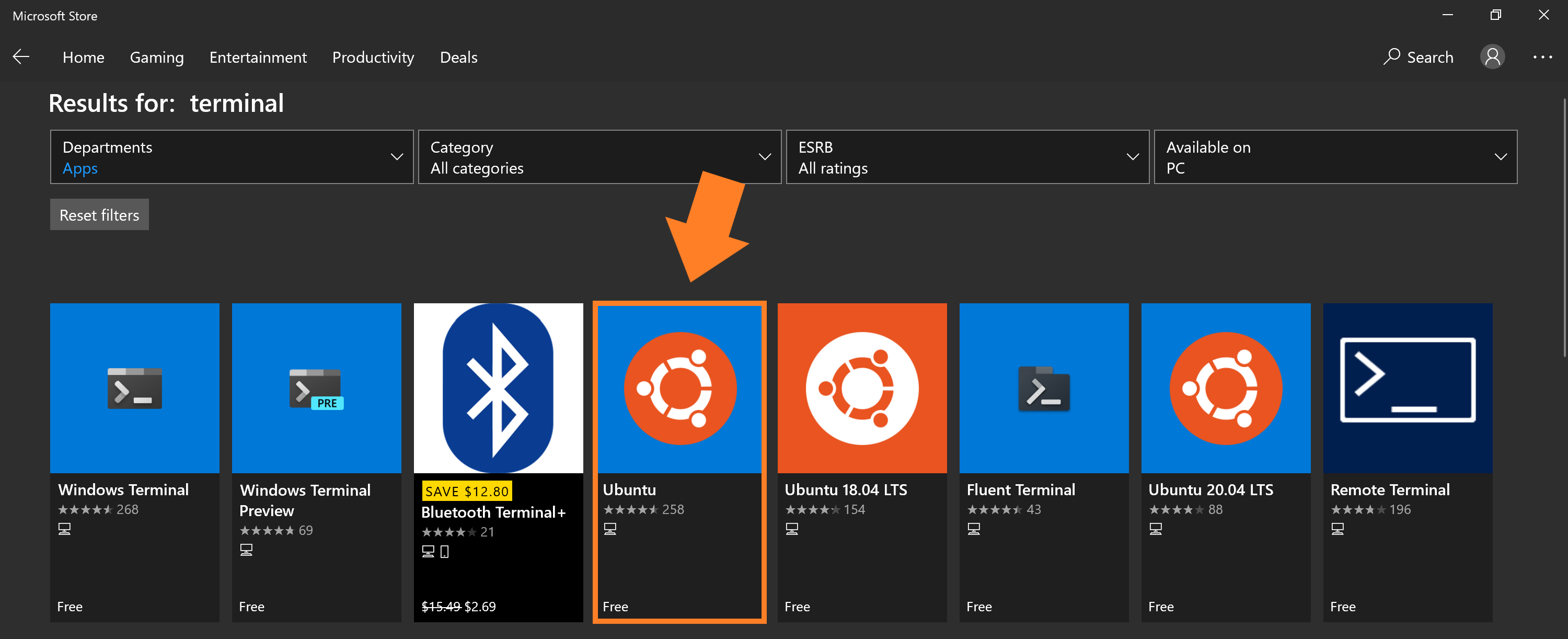
    <p>Open the <a href="https://aka.ms/wslstore">Windows Store</a> and download Ubuntu.</p>

    <p><img src="/images/ms_store_ubuntu.png" alt="" /></p>
  </li>
  <li>
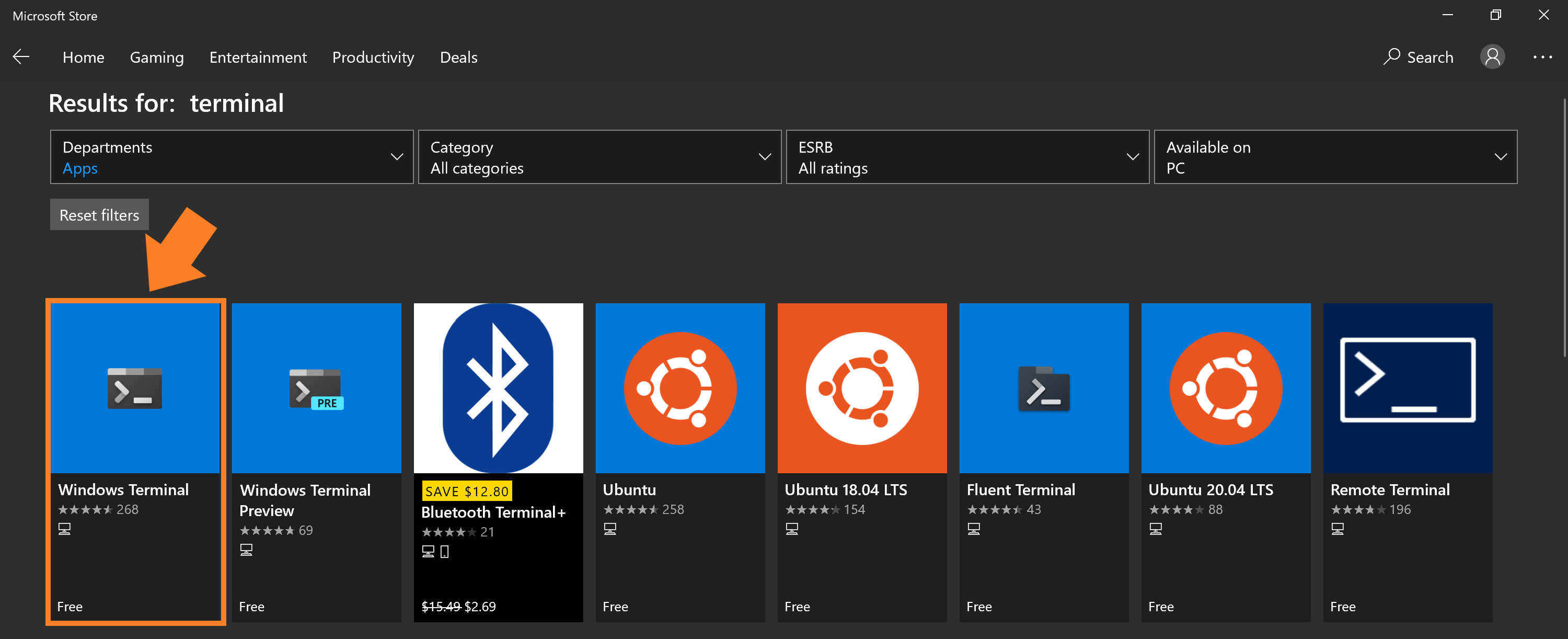
    <p>Download the Windows Terminal app.</p>

    <p><img src="/images/ms_store_terminal.png" alt="" /></p>
  </li>
  <li>
    <p>Open the Windows Terminal app. You are now ready to go! You will be asked to create a username and password.</p>
  </li>
</ol>

<hr />

<h1 id="part-b-github">Part B: GitHub</h1>

<h2 id="setting-up-ssh-keys">Setting up SSH keys</h2>

<p>We need to set up an SSH key to easily push changes to your repos.</p>

<ol>
  <li>
    <p>On your terminal, run and click enter for all prompts:</p>

    <div class="language-bash highlighter-rouge"><div class="highlight"><pre class="highlight"><code> ssh-keygen
</code></pre></div>    </div>
  </li>
  <li>
    <p>Print and copy contents of the file:</p>

    <div class="language-bash highlighter-rouge"><div class="highlight"><pre class="highlight"><code> <span class="nb">cat</span> ~/.ssh/id_rsa.pub
</code></pre></div>    </div>
  </li>
  <li>
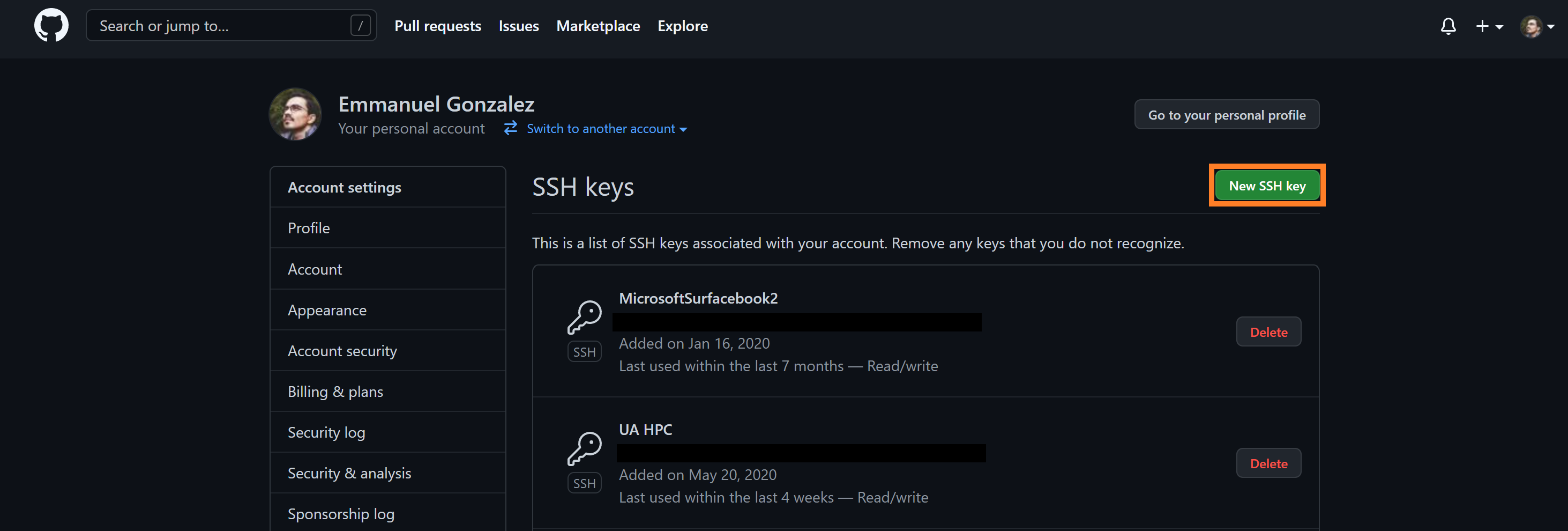
    <p>Open <a href="https://github.com/">GitHub</a>, click on your Profile Picture &gt; Settings &gt; SSH and GPG keys &gt; New SSH Key.</p>

    <p><img src="/images/ssh_setup.png" alt="" /></p>
  </li>
  <li>
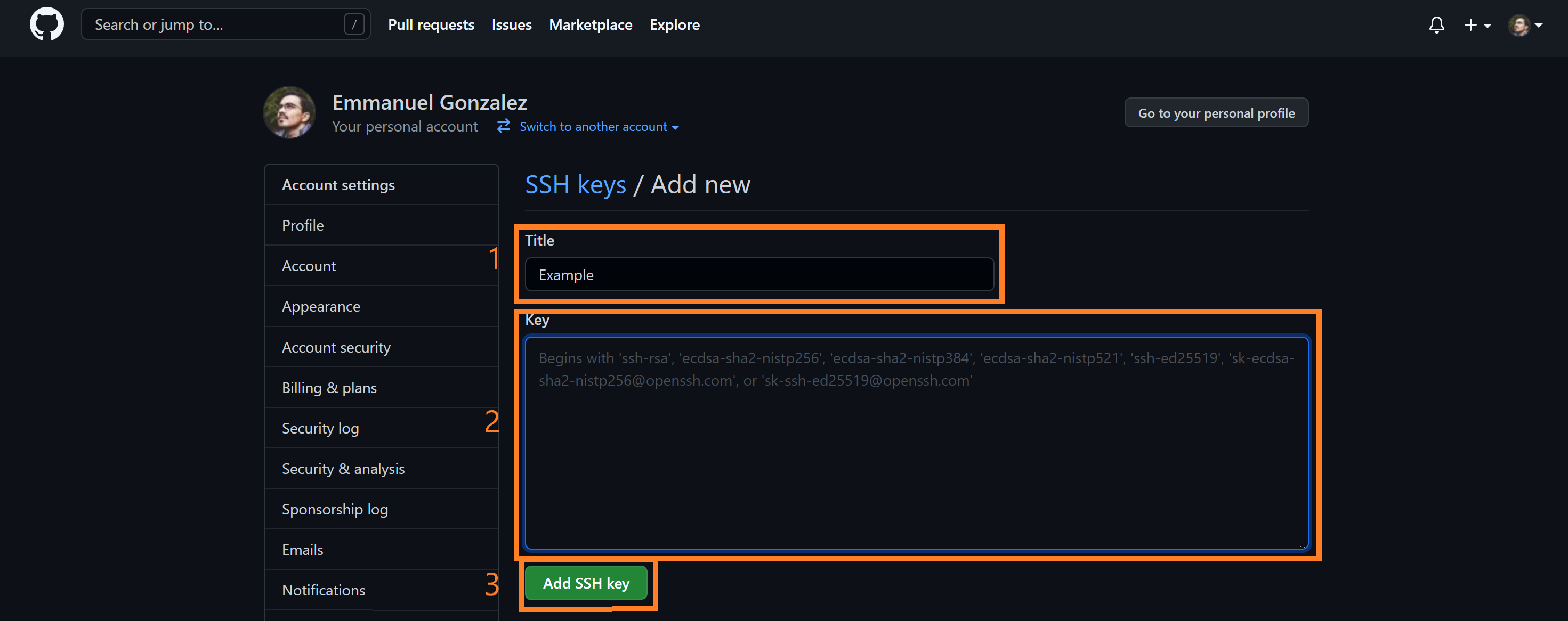
    <p>Paste the contents of your file which you previously copied into the Key field, add a descriptive title, and click “Add SSH Key”.</p>

    <p><img src="/images/add_ssh.png" alt="" /></p>
  </li>
</ol>

<h2 id="fork--clone-a-repo">Fork &amp; clone a repo</h2>

<ol>
  <li>
    <p>Fork the <a href="https://github.com/academicpages/academicpages.github.io">Academic Pages</a> repo.</p>

    <p><img src="/images/fork_repo.png" alt="" /></p>
  </li>
  <li>
    <p>Rename the repo to your GitHub username:</p>

    <p><img src="/images/rename_repo.png" alt="" /></p>
  </li>
  <li>
    <p>Click on the green “Code” button and copy the link to clone your own repo.</p>

    <p><img src="/images/clone_repo.png" alt="" /></p>
  </li>
  <li>
    <p>On your terminal, run:</p>

    <div class="language-bash highlighter-rouge"><div class="highlight"><pre class="highlight"><code> git clone &lt;insert <span class="nb">link </span>here&gt;
</code></pre></div>    </div>
  </li>
</ol>

<hr />

<h1 id="part-c-irods-data-management">Part C: iRODS Data Management</h1>

<h2 id="macos-users">macOS users</h2>

<ol>
  <li>Download the macOS installer <a href="https://cyverse.atlassian.net/wiki/download/attachments/241869823/cyverse-icommands-4.1.9.pkg?version=3&amp;modificationDate=1472820029000&amp;cacheVersion=1&amp;api=v2">here</a>.</li>
  <li>Follow the installation steps.</li>
  <li>
    <p>On your terminal, run:</p>

    <div class="language-bash highlighter-rouge"><div class="highlight"><pre class="highlight"><code> iinit
</code></pre></div>    </div>
  </li>
  <li>
    <p>Fill in the prompts with:</p>

    <table>
      <thead>
        <tr>
          <th style="text-align: center">Host name</th>
          <th style="text-align: center">Port #</th>
          <th style="text-align: center">Username</th>
          <th style="text-align: center">Zone</th>
          <th style="text-align: center">Password</th>
        </tr>
      </thead>
      <tbody>
        <tr>
          <td style="text-align: center">data.cyverse.org</td>
          <td style="text-align: center">1247</td>
          <td style="text-align: center">CyVerse User ID</td>
          <td style="text-align: center">iplant</td>
          <td style="text-align: center">CyVerse password</td>
        </tr>
      </tbody>
    </table>
  </li>
  <li>You’re now ready to start downloading some data!</li>
</ol>

<h2 id="wsl-2--linux-users">WSL 2 &amp; Linux users</h2>

<ol>
  <li>
    <p>Download the iRODS installation shell script and give it executable permissions:</p>

    <div class="language-bash highlighter-rouge"><div class="highlight"><pre class="highlight"><code> wget https://raw.githubusercontent.com/emmanuelgonz/emmanuelgonz.github.io/master/files/install_irods_copy.sh <span class="o">&amp;&amp;</span> <span class="nb">chmod </span>755 install_irods_copy.sh
</code></pre></div>    </div>
  </li>
  <li>
    <p>Run the installation script:</p>

    <div class="language-bash highlighter-rouge"><div class="highlight"><pre class="highlight"><code> <span class="nb">sudo</span> ./install_irods_copy.sh
</code></pre></div>    </div>
  </li>
  <li>
    <p>Log in to iRODS:</p>

    <div class="language-bash highlighter-rouge"><div class="highlight"><pre class="highlight"><code> iinit
</code></pre></div>    </div>
  </li>
  <li>
    <p>Fill in the prompts with:</p>

    <table>
      <thead>
        <tr>
          <th style="text-align: center">Host name</th>
          <th style="text-align: center">Port #</th>
          <th style="text-align: center">Username</th>
          <th style="text-align: center">zone</th>
          <th style="text-align: center">Password</th>
        </tr>
      </thead>
      <tbody>
        <tr>
          <td style="text-align: center">data.cyverse.org</td>
          <td style="text-align: center">1247</td>
          <td style="text-align: center">CyVerse User ID</td>
          <td style="text-align: center">iplant</td>
          <td style="text-align: center">CyVerse password</td>
        </tr>
      </tbody>
    </table>
  </li>
  <li>
    <p>You’re ready to start downloading some data! Let’s continue our tutorial <a href="https://emmanuelgonz.github.io/posts/2021/09/irods-crash-course/">here</a>.</p>
  </li>
</ol>

<h1 id="resources">Resources</h1>

<ul>
  <li>
    <p>For details on the vim editor, run the following:</p>

    <div class="language-bash highlighter-rouge"><div class="highlight"><pre class="highlight"><code>  vimtutor
</code></pre></div>    </div>
  </li>
</ul>]]></content><author><name>Yiheng An</name><email>yiheng.an.usa@gmail.com</email></author><category term="terminal" /><category term="bash" /><category term="github" /><category term="git" /><category term="irods" /><category term="cyverse" /><category term="data" /><category term="science" /><category term="computing" /><category term="soft skills" /><category term="linux" /><summary type="html"><![CDATA[Learn how to leverage the terminal for GitHub version control and Integrated Rule-Oriented Data System (iRODS) data management!]]></summary></entry></feed>